

When working with RDLC report layouts, there are many different properties available to aide in customization. This blog post will focus on CanGrow and how we can use it to expand to display all of its contents, or restrict its size.
CanGrow is a property on RDLC report objects that when set to True allows an object to expand vertically to display all of the information it contains. When you add a new object to a report layout, like a textbox, the default value for CanGrow is set to True. The CanGrow property is used on Textboxes, table rows and cells, and other text content, like headers, footers and labels.
Today’s example is using report 1305 Sales – Confirmation, with the “Standard Sales Order Confirmation (RDLC)” report layout. As you can see in the image below, “Whisker Wonders Purrfect Tailored Solutions for Feline Friends” is quite a long Company Name. (Business Central allows maximum of 100 characters for the Company Name field). What happens when you have a long value that takes up more space than the allotted text box? If CanGrow is set to True the text will wrap to display the entire value.
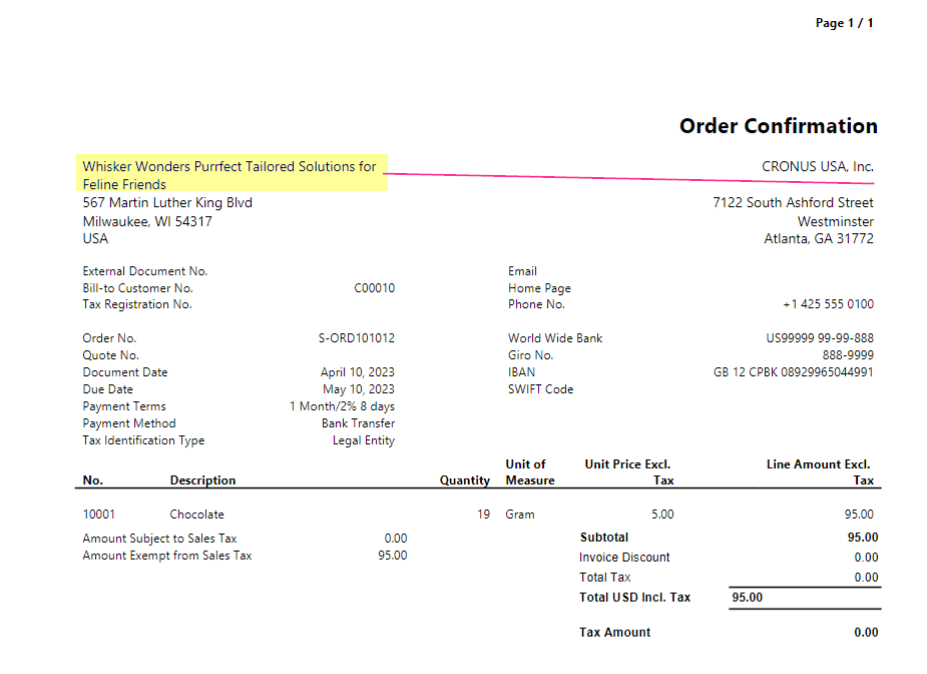
You can then see with the pink line how this shifts the entire layout down. This may not be a big deal when you only have one sales line, but if your report layout has a very specific size (say, on a Bill of Lading, or Label report), this could push your report from one to two pages. If your report layout is limited with real estate, and you can’t expand the text box size to accommodate all 100 characters, we have one more option. We can change the CanGrow property to False.
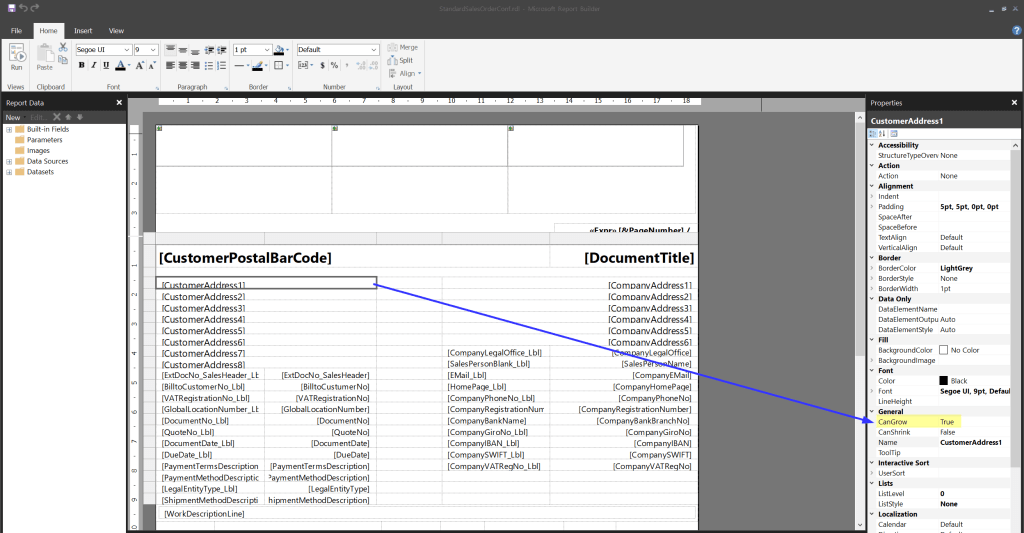
You may be wondering what happens when we change CanGrow to False. Well, it will truncate the value to fit inside the space allowed. As you can see in the image below, our company name has been truncated, but nothing else on the report layout has moved. By setting CanGrow to False on all of your text boxes, it’s effectively like locking them into place.
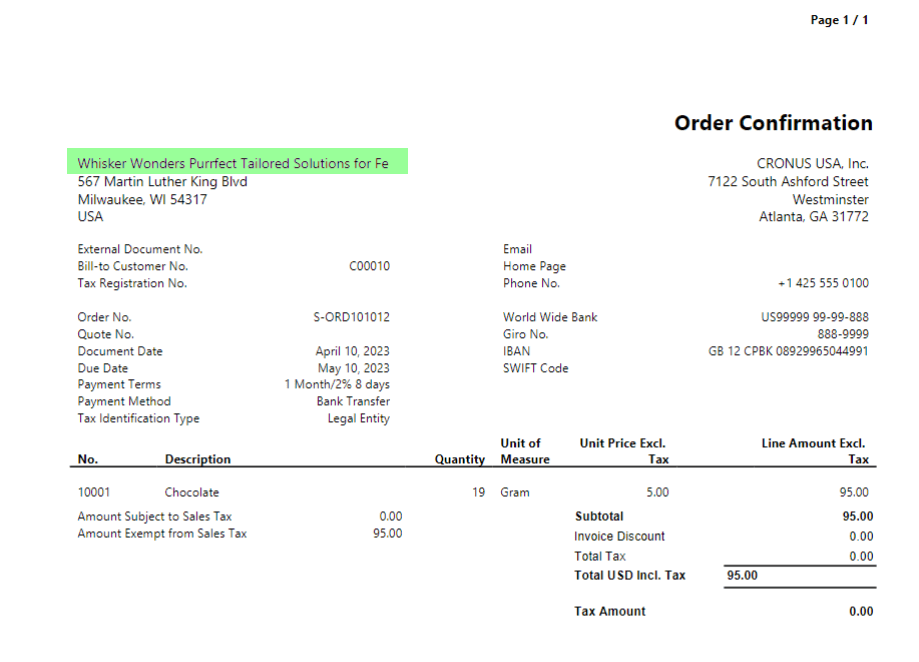
There are a few different use cases for setting CanGrow to either True or False. If you want your entire report to grow dynamically based on the content of the content, you would want it set to True. If your report data has to fit within a constrained space, and effectively “lock” the text boxes in place, set all of the CanGrow properties to False.
Ultimately the CanGrow property is useful when you are trying to find a balance between readability and space constraints within a report layout.
#msdyn365bc #businesscentral #reporting
 BC Development Notebook