
Have you hit the midweek slump, and realized you have been putting off debugging that one weird issue all week? If you are on Business Central version 28 (or later), you can now let Copilot do some of the heavy lifting for you.
Read More »
Have you hit the midweek slump, and realized you have been putting off debugging that one weird issue all week? If you are on Business Central version 28 (or later), you can now let Copilot do some of the heavy lifting for you.
Read More »
Have you experienced the newest bottleneck in your development process: Not being able to type your prompt fast enough.
There is an extension within VS Code – “VS Code Speech” that allows you to talk to the Chat.
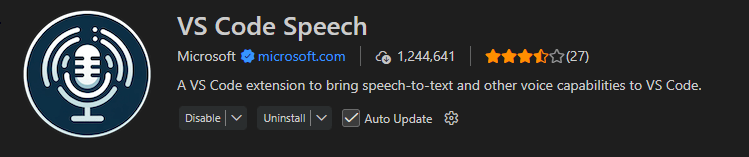
Once installed, you need to enable “Hey Code” to keep your fingers off the keyboard.
Open VS Code Settings (Ctrl + ,) and search for “voice keyword”.
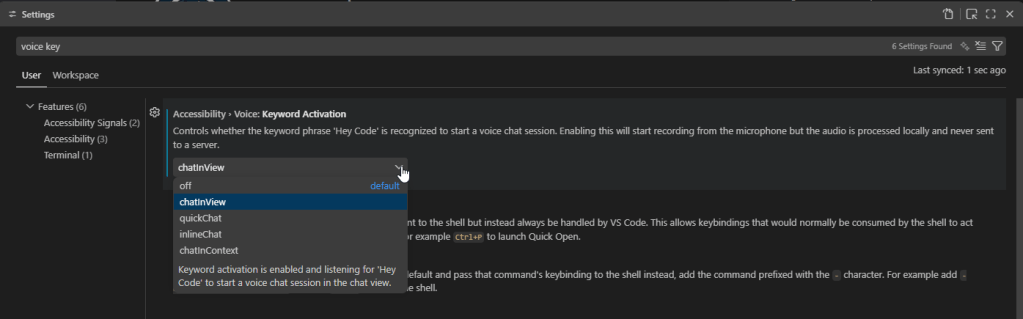
You will want to set your Keyword activation, and there are couple different options.
Note: the description states that VS Code will record from your microphone, but the audio is processed locally and is never sent to a sever.
Once you say ‘Hey Code’ you can start talking, and GitHub Copilot Chat is listening.
To end dictation you have a couple of options.
You can also edit the text being generated as the microphone is listening, in case it didn’t understand you correctly.
With “VS Code to Speech” enabled, you can also have the chat responses read to you. Once GitHub Copilot is done responding, you can click the speaker icon, and it will read what it responded with.
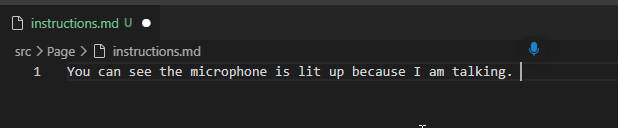
You can also dictate directly in the editor. Think writing your markdown instructions.
Ctrl + Alt + V will open your microphone within your editor, and you are ready to talk!
Thank you to Michael Megel for sharing this with the community on this blog post.
VS Code Speech – Extension Details

Organizations rely on Business Central for operational and financial reporting, but many teams still export data to Excel when they need flexible analysis, custom layouts, or presentation‑ready visuals. Traditionally, this meant a significant amount of manual work: formatting, building pivot tables, adding calculated fields, and assembling dashboards.
What’s changed recently isn’t just one new feature, it’s the combination of Copilot capabilities across M365, and how they now naturally show up inside of Excel. When you put Excel Copilot, Agent Mode, and in‑place editing together, Excel stops being a passive spreadsheet tool and starts acting like an active reporting assistant.
Read More »
Prompts are markdown files that are used by GitHub Copilot to assist in common development tasks. Instead of having to type out the same instructions, you can pull prompts into your chat to reuse the logic and speed up your development workflow.
Let’s talk about how we can create our own custom reusable prompts for GitHub Copilot!
Read More » GitHub Copilot is more than a fancy auto-complete, as it offers multiple chat modes that empower developers to interact with their code in natural language to streamline development. Whether you need quick answers, automated refactoring, structured planning, or autonomous multi-step execution, Copilot’s chat modes provide tailored solutions for every stage of your development process. This playbook will guide you through each mode, illustrating how to leverage them effectively to boost productivity and maintain coding flow.
Read More » In the ever-evolving world of software development, staying ahead of the curve is crucial. One of the latest tools making waves in the industry is GitHub Copilot, an AI-powered coding assistant developed by GitHub and OpenAI. This innovative tool is designed to boost productivity, improve code quality, and foster innovation among developers. I have been diving deep into settings, use cases, instructions and prompt generation for the past couple of months, and am very excited about the progress being made. If you are not already “pair programming” with GitHub Copilot, I urge you get a license and start dive into the world of AI-enabled programming. It has completely changed not only my workstream, but my understanding on many different coding principles. This is going to be the beginning of a series of ongoing blog posts to help support you in your GitHub Copilot development journey.
Read More »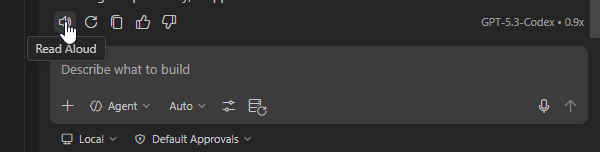
 BC Development Notebook