

Have you ever been walking through a process in Business Central, and realize you want to debug, but don’t want to wait to publish, and get back to the exact spot where you were testing something? Or for some reason you were debugging something, and the debugger stopped, and you want to jump right back in to the process you were examining. This is where “Attach Debugger to this session” comes in handy,
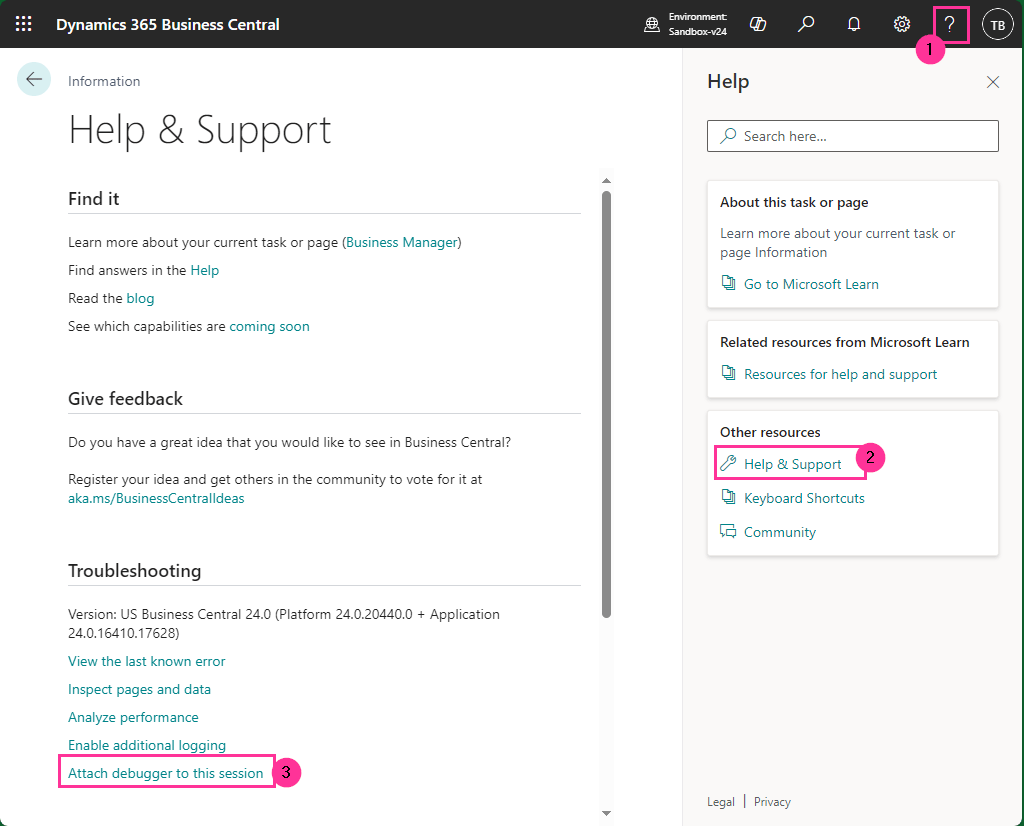
Within Business Central you will first open Help by clicking the ❔ in the top right-hand corner. you will then click Help & Support. Within Troubleshooting, you will want to “Attach Debugger to this session”.
This will then pop open a message that “This site is trying to open Visual Studio Code”. You will want to click Open. You will then be prompted to either Use current Project (that you already have open) or Create a new project.
I would suggest having the current project open, so you can easily debug your code that you have written. If you create a new project, it will download the symbols from the Base and System Applications (so no Per Tenant Extensions[PTE]). You can hit custom code, you would just need to set a breakpoint within a Base App to get there (or just hit an error in a PTE). Note: External code can only be debugged if the code was published with allowDebugging set to true.
The next option will be what Debugging Type would you like to use.
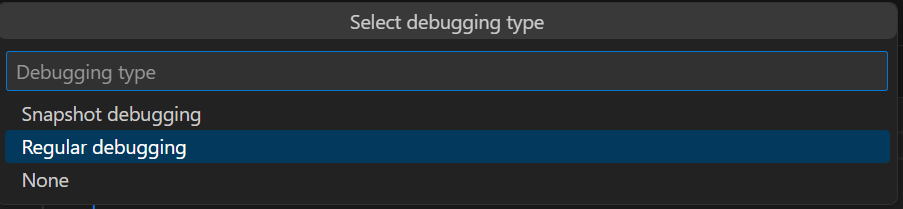
– Snapshot debugging — you use this option when debugging Production environments. This takes a recording of the code being executed from a specific session. You can find out more information from Microsoft here
– Regular Debugging (this is my default option)
– None
So if we follow my default suggestion of Regular Debugging, it will attach to the current session. You can see in your launch.json that it populates a sessionId. You are now able to debug the current session.
For more general information about debugging from Microsoft, click here
#BusinessCentral #msdyn365bc #HumpDayHacks #Debugging
 BC Development Notebook