

The new October, 2024 release for Visual Studio Code is pretty magnificent for Business Central Developers. ✨ This blog post is going to be dedicated to working with Copilot Edits in VS Code.
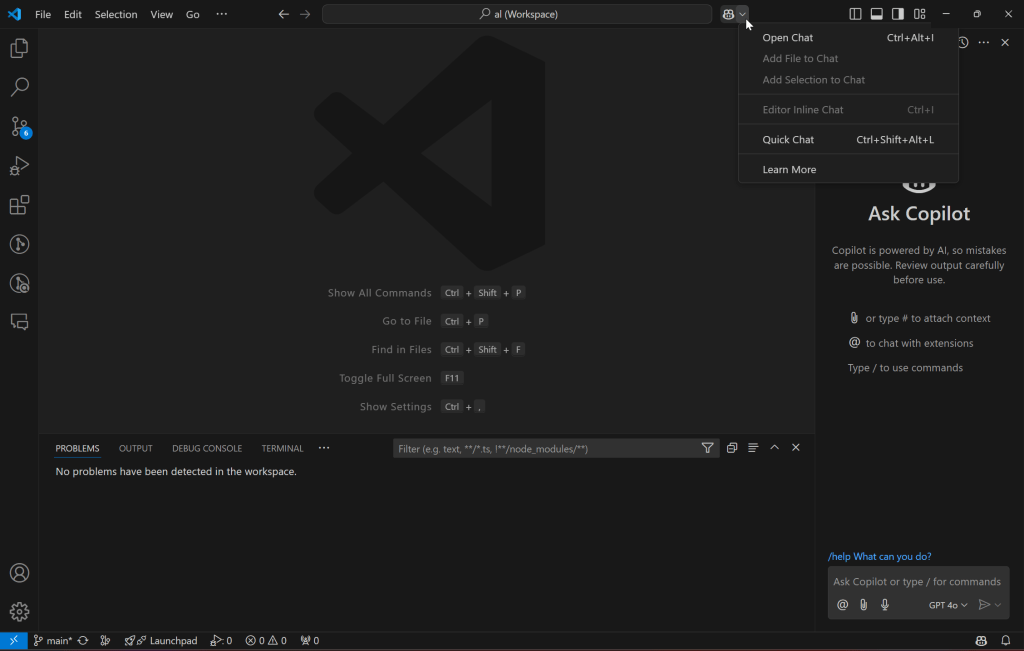
Copilot chat now has it’s own pane on the right-side of the editor. You can either open with the shortcut Ctrl + Alt + I or there is a button next to the command pallet to open Copilot Chat
As a Business Central Developer, I know that when I add a new field to the Purchase Line I need to add it to the associated tables, like the Purch. Inv. Line, Purchase Line Archive and Purch. Cr. Memo Line. I had some existing code that was only on the Purchase Line, so within VS Code, I dragged all of these files into the Copilot Chat pane. I then asked Copilot to make sure all of these tables have the same fields.
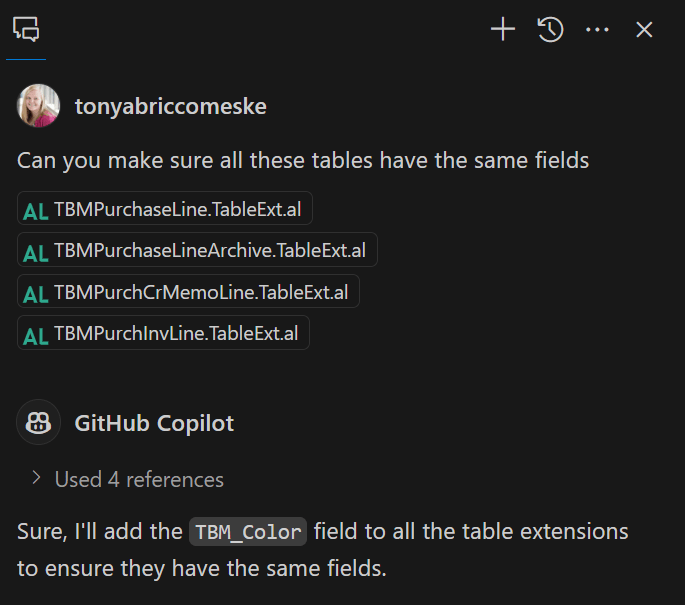
Copilot made edits to each of the files, and from the side pane, you can “Apply in Editor” to have the changes made directly to your files.

Now let’s put Copilot to the test, and ask it to add a new field to all of my tables.
Now can you add a new field called Cat Count with a data type of Integer

Without telling Copilot, it used the next field number, added a Caption and DataClassification. You may be thinking, but it didn’t apply my prefix! With waldo’s CRS AL Language extension, when I save the file my field gets renamed with my prefix, and no changes are needed with the Caption.
So in a matter of minutes, I made sure all of my related tables are in sync, and just updated four different tables with a new field.
This to me, is a game-changer in terms of utilizing GitHub Copilot Chat within Visual Studio Code.
You can check out the VS Code release notes here
 BC Development Notebook