

Let’s be honest, the internet went a little crazy with the “combined” update to Microsoft Teams. All of your chats, teams and channels are all together in one place. For some this may feel like a flaming dumpster fire, but for a type A organized girlie, this is exactly the feature I needed!
The New Features
Now that everything is one place, you probably need to implement some organizational sections. By default, there are three sections.
- Favorites: These are your most important chats and channels. (This should include everything from the old Pinned section)
- Chats: Here are where all of your chats are located. By default, they are sorted by Most Recent. You also have the ability to toggle to Unread Only.
- Teams and channels: here are all of your channels, which are organized by team.
I will admit this can feel a little overwhelming. So how did I organize my Microsoft Teams?
I decided to add some Sections to keep me organized. For example, I have team chats for each of the projects I am a part of. When you right-click on a chat, you can click Move to > New Section.

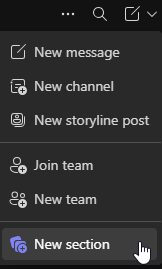
You can also organize your conversations by clicking New Items and then clicking New Section.
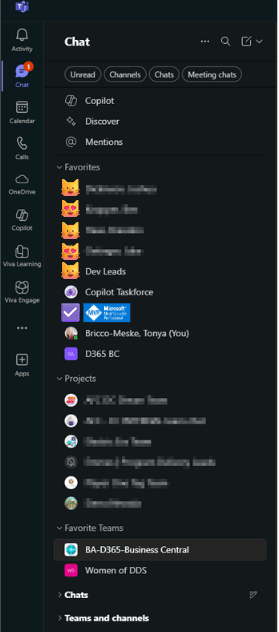
So as you can see here, I have a section for Favorites. This is a mixture of chats with my favorite cool cats, group chats, where I talk to myself (because sometimes you just need to quick jot something down), and even my favorite Team that I am working with constantly.
The next section is for all of my Project chats. These are group chats I like to keep an eye on, but depending on my work flow for the day, I might have it collapsed because I am working on mentoring, internal initiatives, etc.
I then added a section for my Favorite Teams. This is just an example of some of the Teams I wanted to pull out with to keep up with, as opposed to all the other Teams and Channels I am a part of, but don’t need to monitor as closely.
You can then see I have collapsed Chats, as well as Teams and channels. The section headers are bold because I do have some unread messages.
There are several other “properties” you can control within Microsoft Teams to give it the look and feel that matches your workflow. As you can see, my side pane is fairly compressed. I have hidden all message previews and time stamps.
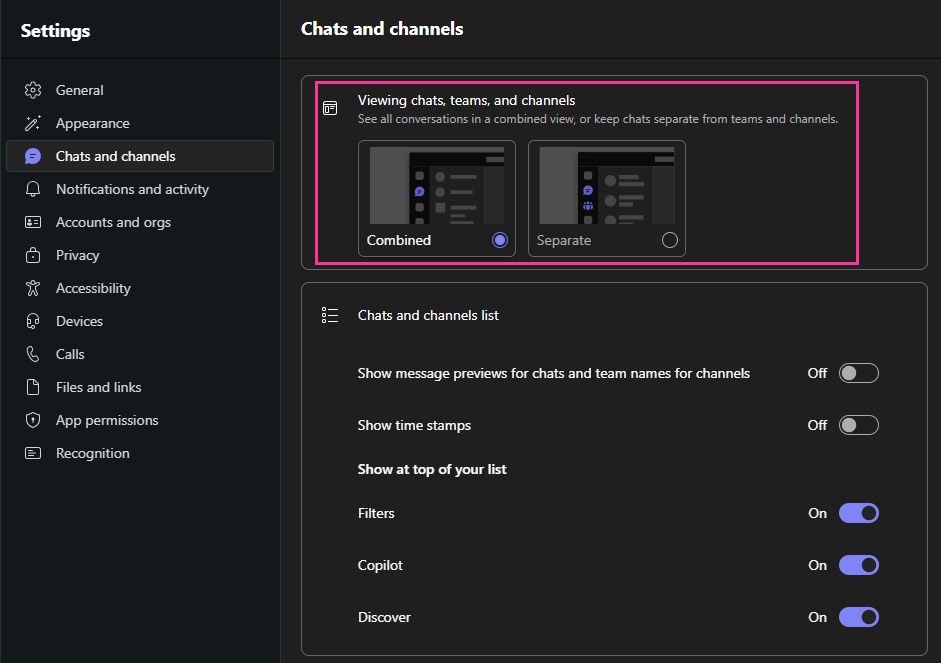
If you want to show or hide message previews within the chat pane you can go to Settings > Chats and channels > Show message previews for chats and team names for channels. You can also control the visibility of timestamps, and what you want to show at the top of the list. I do have quick filters, like the Unread messages, as well as Copilot and Discover.
If after a few days you really don’t like the new Microsoft Teams layout, you can switch from Combined back to Separate. (Seriously, give it a chance!)
Resources
Microsoft documentation on The new chat and channels experience in Microsoft Teams
#MicrosoftTeams
 BC Development Notebook