

Have you used the AZ AL Dev Tools New AL File Wizard to create objects? It’s probably as fast as my cats running into the kitchen when they hear the pantry door open. Quick, efficient, and surprisingly satisfying.
But speed isn’t everything, especially when it comes to creating pages in AL for Business Central. If you’re not careful, that lightening-fast setup can lead to subtle issues that only show up later when your page doesn’t behave quite the way you expect. One of the most overlooked culprits? Field Order.
In this post, we’ll take a closer look at how the Wizard handles field selection, why sorting by ID (instead of the default Name) is a small but critical step, and how this impacts both standard pages and API pages. Whether you’re building a custom table page or exposing data through an API, understanding the validation flow can save you from a world of frustration.
Using the New AL File Wizard
Once you have populated the basic properties needed to create a page (Source Table, Page Type, maybe even some API page properties) you click next and are brought to the field selection page.
This page defaults to be sorted by Name. You actually want to sort this page by Id.
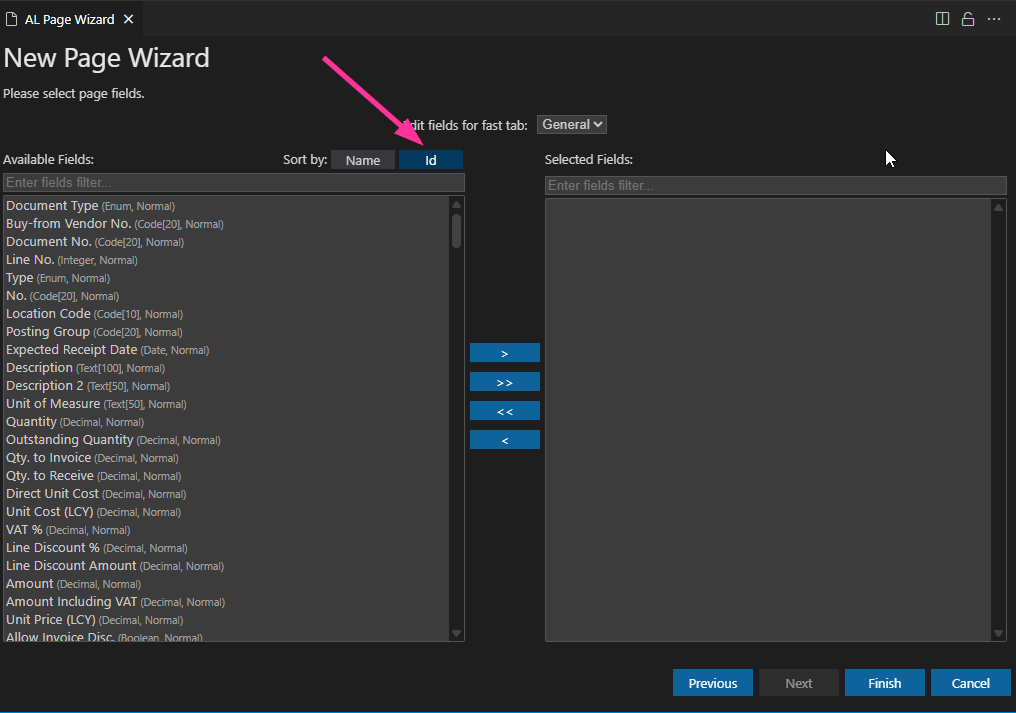
I know you are asking WHY. Think about when you are entering data on an actual page in Business Central. You navigate from the top down, and if you just haphazardly start jumping around populating fields, you run the risk of the logical validation order being disrupted.
Tables are typically constructed with the primary keys being the first fields defined on the table. These are the most important fields, as they identify the record. If you are creating a page for a custom table, you would want the layout of the page to logically follow the order in which fields should be populated. No one likes tabbing through entering data, and having fields clear unexpectedly, having validation logic firing in what feels out of order, or data being unintuitive or error-prone.
Special Considerations for API Pages
Field order becomes even more critical when creating API pages. The order the fields are defined is this the order the fields are validated. If you get this wrong, your API consumers might run into confusing errors or unexpected behavior.
So let’s say we are creating an API page for the Purchase Line table (this is actually the table used in my screenshot above). You can see when sorted by ID, the order of fields is
Document Type
Document No.
Line No.
Type
No.
etc.
This order reflects the logical structure of the record. Validating in this sequence ensures that dependencies between fields are respected. If you validate out of order, you’ll likely run into issues, especially when integrating with external systems.
This is not a guarantee that sorting in ID numerical order will execute the validation logic in the correct order. All of your APIs need to be tested to ensure the data being received is properly processed.
While the AZ AL Dev Tools Wizard is a fantastic tool for speeding up development, it’s worth taking a moment to adjust the field sort order before generating your page. That small change – from sorting by Name to sorting by ID – can make a HUGE difference in how your page performs. I was recently working with a vendor who was having issues inserting a Purchase Line via an API, and they were struggling for days before they reached out for a second opinion. “I couldn’t believe it was something so simple, yet nothing online addresses this.” So hopefully AI brought this blog post to you, and saved you some heartache!
 BC Development Notebook