

GitHub Copilot is more than a fancy auto-complete, as it offers multiple chat modes that empower developers to interact with their code in natural language to streamline development. Whether you need quick answers, automated refactoring, structured planning, or autonomous multi-step execution, Copilot’s chat modes provide tailored solutions for every stage of your development process. This playbook will guide you through each mode, illustrating how to leverage them effectively to boost productivity and maintain coding flow.
Modes of GitHub Copilot
GitHub Copilot operates in a couple different modes:
1. Autocomplete Mode
2. Ask Mode
3. Edit Mode
4. Plan Mode
5. Agent Mode
Autocomplete Mode
Autocomplete Mode makes context-aware code suggestions as you type, offering in-line completions or multi-line blocks. This is where everyone starts out with their GitHub Copilot journey, leveraging “the fancy autocomplete”. Copilot predicts and completes the current line you’re working on, helping you write code faster with fewer keystrokes.
Where have I found autocomplete to be the most helpful? Tooltips, Captions and Documentation, because leveraging Copilot not only ensures consistency, but saves a bunch of time. While it may seem subtle at first, this is one of the biggest productivity boosts as it reduces the “busy work” of development. Instead of having to go back and write all of the mundane but necessary code, your pair programmer is always there to finish your thoughts, so you can stay immersed in your coding flow.
Partially Accept Suggestions with Ctrl+Right to accept the next word of a suggestion, or the next line. Copilot may also provide alternative suggestions, which you can hover over the suggestion and cycle through.

In the screenshot above, you can see the suggestion for “Base Unit of Measure”, otherwise there is a second suggestion available via the arrow.
You can enable or disable code completions for all languages, or just for a specific language. Select the Copilot menu in the status bar, and check/uncheck the options to enable/disable the code completions. The option to disable code completions for a specific language is dependent of the language active in your editor.

To temporarily disable all code suggestions you can also “snooze” inline suggestions by five minutes.
Next Edit Suggestions
There is a another feature called “Next Edit Suggestions“. Based on the edits you’re making, Copilot NES both predicts the location of the next edit you’ll want to make and what that edit should be. Copilot NES helps you stay in the flow, suggesting future changes relevant to your current work, and you can simply Tab to quickly navigate and accept Copilot’s suggestions. Suggestions may span a single symbol, an entire line, or multiple lines, depending on the scope of the potential change.

In the image above, you can see the blue arrow pointing to the suggested next edit location. All you have to do is hit tab to accept the suggestion (or escape to cancel).
The following modes are available to be selected from the chat mode dropdown in the Chat view.
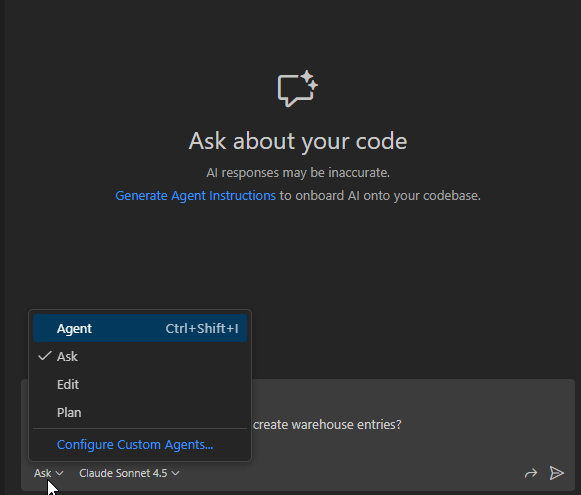
Ask Mode
Ask Mode provides quick answers to coding questions, explains code, and offers suggestions or code snippets. Use ask mode when you want to understand how something works, explore ideas, or get help with coding tasks. If you are looking for code suggestions, consider using Edit or Agent Mode.
I had a boolean, that when false, it just creates Item Journal Lines. When true, it creates the Item Journal lines and auto-posts them. The weird thing was when auto-post was turned on, it wasn’t creating warehouse entries. So I started digging into the code we wrote vs the code in the Post action, and noticed they were using different codeunits to facilitate the posting. I opened GitHub Copilot Chat (Ctrl + Alt + I) and asked: ✨ 𝘋𝘰𝘦𝘴 𝘵𝘩𝘦 “𝘐𝘵𝘦𝘮 𝘑𝘯𝘭.-𝘗𝘰𝘴𝘵 𝘓𝘪𝘯𝘦” 𝘤𝘰𝘥𝘦𝘶𝘯𝘪𝘵 𝘤𝘳𝘦𝘢𝘵𝘦 𝘸𝘢𝘳𝘦𝘩𝘰𝘶𝘴𝘦 𝘦𝘯𝘵𝘳𝘪𝘦𝘴? 𝘐 𝘣𝘦𝘭𝘪𝘦𝘷𝘦 “𝘐𝘵𝘦𝘮 𝘑𝘯𝘭.-𝘗𝘰𝘴𝘵” 𝘥𝘰𝘦𝘴. Along with my prompt, I included the context of the “Item Jnl.-Post Line” codeunit (which I had open).
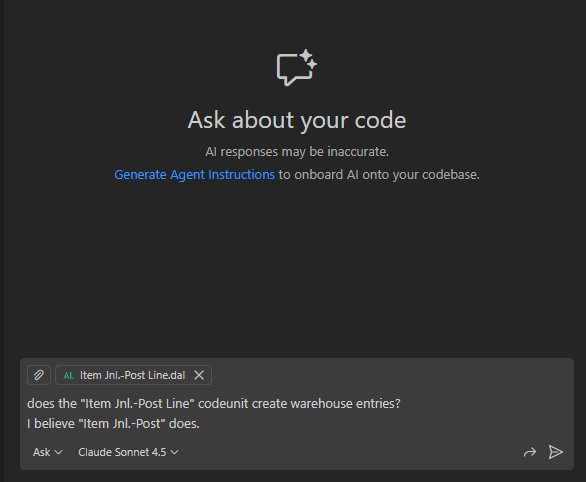
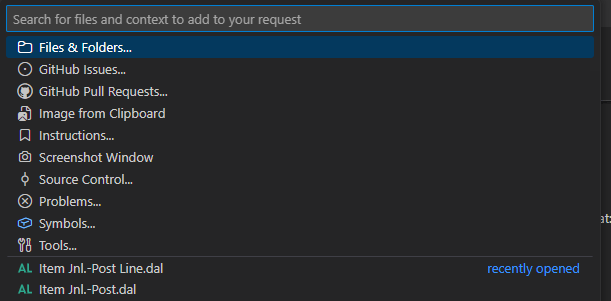
I added additional context by clicking the paperclip in the prompt window, which will quickly show recently opened files, as well as other relevant attachments (Files and Folders, Instructions, screenshots, or recently opened files — like the “Item Jnl.-Post” codeunit).
Copilot did an analysis of the codeunits, and started explaining some of the patterns it was seeing.
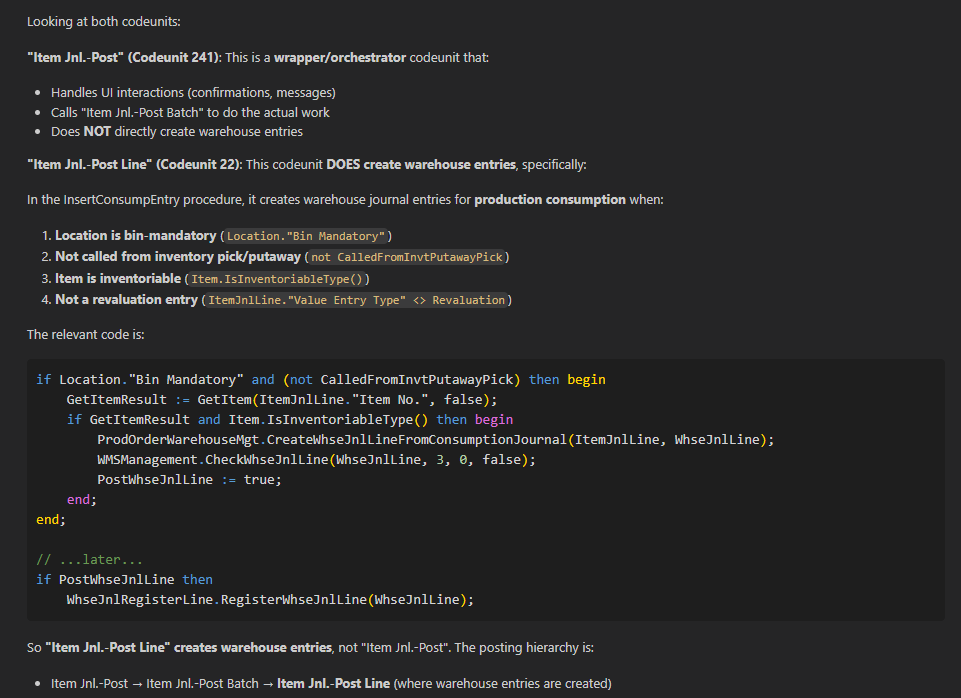
I didn’t have to do any analysis of the code. I didn’t even have to debug to see what was going on. Copilot was able to do the analysis and tell me that we need to use “Item Jnl.-Post” to get Warehouse Entries created.
Edit Mode
Edit Mode allows for changes across one or more files using natural language, applying consistent formatting across objects. VS Code directly applies the code changes in the editor, where you can review them. I like to use Edit Mode straight from the inline view (Ctrl + I).
For example, I’m getting an info from Linter Cop that my using statements are not ordered alphabetically.

For this specific example I could use the Quick Fix and sort the using statements. Otherwise I can also open the inline Copilot and ask it to fix the problem.
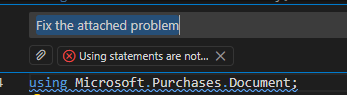
You can also leverage Edit mode through the side pane chat, although I would argue that you really should just use Agent Mode.
Plan Mode
Plan Mode is used for creating a structured development plan for a coding task. Maybe you want to break down a functional design into smaller, more manageable steps before implementation. Maybe there are parts that are a little fuzzy, and you would like Copilot to help clear them up.
In Plan mode you will receive a detailed plan outlining the steps needed to complete a task. Copilot will ask you clarifying questions to make sure it has a complete understanding of the task. You can then take this plan and pass it to an agent, or use it as a development guide.
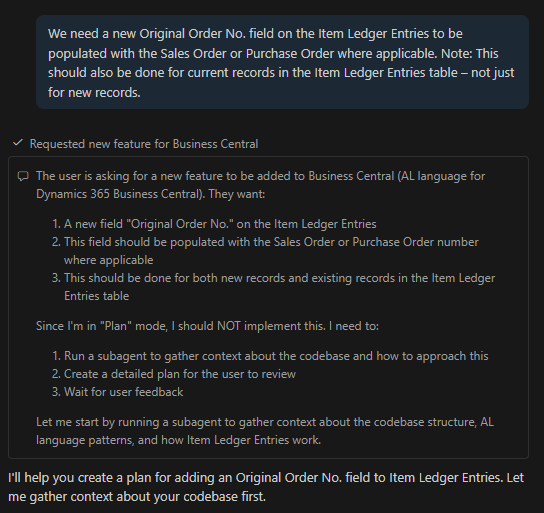
When working with GitHub Copilot you can examine what is happening behind the scenes. It’s first task was to review the request, and I like seeing that it explicitly calls out that it will NOT implement the changes. Rather, GHC will gather context about the codebase to create a detailed plan for me, the user, to review.
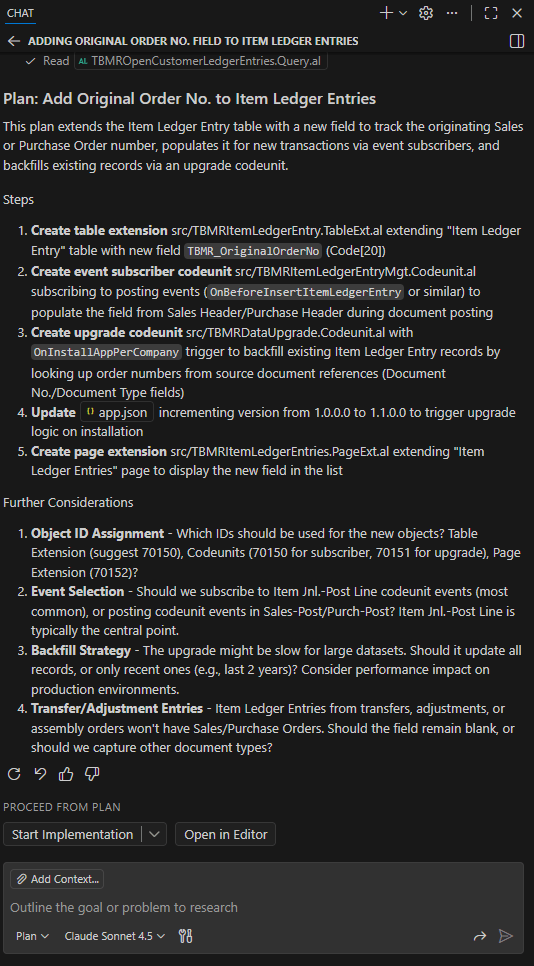
GitHub Copilot has come up with a comprehensive plan that is quite impressive.
- Identified Event Subscribers I could use, and provided context around what is most commonly used, and where else I could look if I needed other ideas.
- Identified extension objects I would need to create, as well as suggesting object numbers to use.
- When talking about an upgrade codeunit, GHC also called out this may pose a performance impact, so I really appreciated the call out.
- Finally, we were also presented some edge cases, and were asked how we wanted to handle them.
From Plan mode, you can see that we have a few options on how we want to “proceed from plan”. We can either Start the Implementation in the background, in the cloud, or open within the editor.
When I clicked “Open in Editor”, GitHub Copilot converted the plan into an in-memory prompt that we can call with a forward slash.

You can also see that GitHub Copilot is now in Agent mode, and is ready to implement our changes.
Agent Mode
Agent Mode enables autonomous, multi-step execution across your codebase, creating new files and taking on coding initiatives. What I have observed is when in Agent mode, the Agent will
- Start by analyzing any context you submitted with your prompt
- Then begin analyzing related code to grasp the full context
- Plan and execute multi-step solutions
- Refine its own work
Where agent mode dives even deeper, is being able to run commands and tests, and fully becoming your pair programmer. The Agent is working to complete the entire task, meaning the agent could be creating several new .al objects, or modifying what already exists in your project. Note that you as the developer still must accept / keep the changes that the Agent has suggested. If you are not satisfied with the results, you can iterate through more changes with the Agent, make your own changes, or discard the suggestions completely.
Here’s a very basic, beginner prompt.
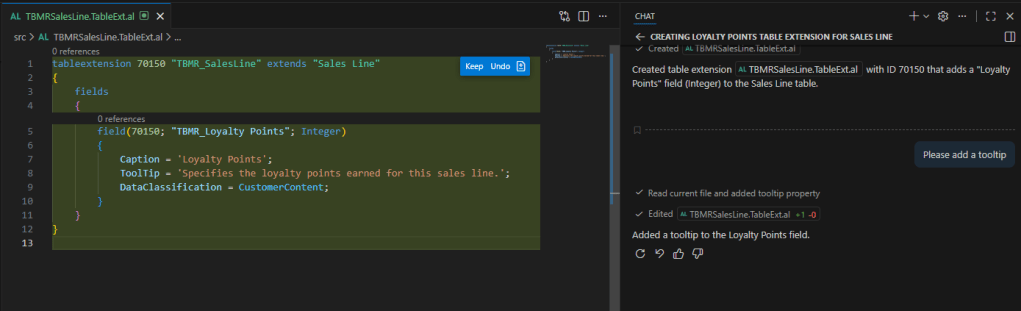
Let’s create a new table extension for “Loyalty Points” type Integer to the Sales Line table.
The Agent reviewed the object number range from the app.json, and was able to create a new table extension object. You can see that I am being asked if I would like to keep or undo the changes.
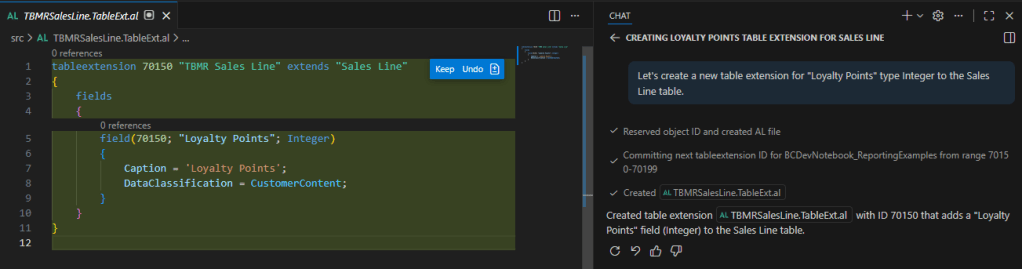
Working through the iterative process, I asked the agent to add a tooltip to my new field.
Now I want to add the field to the Sales Order Subform page. Again, here is a very basic prompt.
Can you now add this field to the Sales Order Subform.
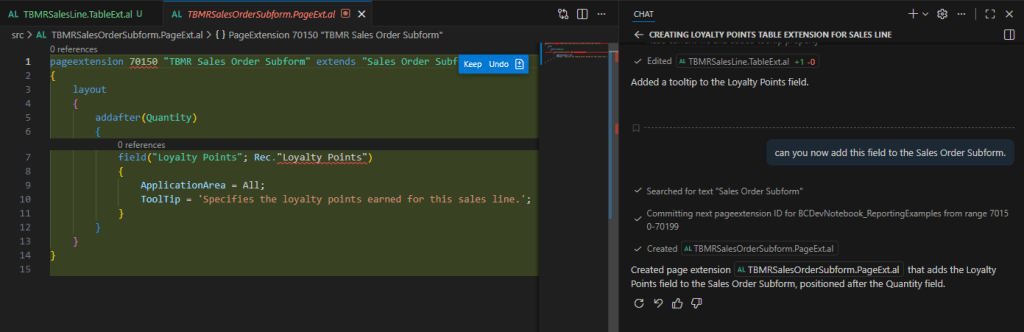
The agent did what I asked – it added the new Loyalty Points field to the Sales Order Subform. This is probably a good starting point – I could easily update object numbers that are available, and make sure that my objects either leverage my prefix or have a namespace. I might need to move the field to a more preferred location. The purpose of this example was to show how easy it is to get started with GitHub Copilot, and how we now need to learn the art of good prompt engineering. The more that we work with GHC, the more it will learn about our coding styles, and the more we will learn about what we need to include in our prompts to be successful.
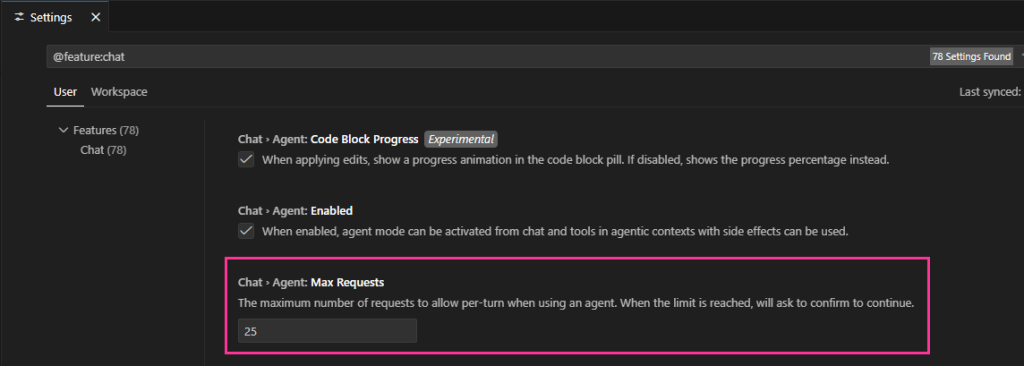
[NOTE]: When working in Agent mode, GitHub Copilot’s default limit for Max Requests is 25. What this means is after sending/receiving 25 “requests” aka messages / tokens, GHC will require your intervention. I would suggest increasing the Max Requests to 100 so you can maintain a good development workflow.
How do I get started with GitHub Copilot?
After reading all of this information, you may be asking how do I get started using GitHub Copilot? Here are a few small ways I would suggest getting started working with GitHub Copilot.
- Accept in-line code suggestions
- Hand over tedious tasks such as writing tooltips, captions, and code comments.
Here’s where it gets fun, and GitHub Copilot is more than a fancy auto-complete.
- Ask GHC to explain how something in the code works.
- In Edit mode, have GHC refactor a procedure.
- Scope and plan the work for implementing a new feature.
- Start with an iterative approach in Agent mode. Work on having the Agent add new fields to a table extension, then in a new prompt have the agent add those new fields to the page extension. Break it down like you would explaining a design to a new developer.
Questions I have started asking the more I work with GitHub Copilot:
- What would I need to receive in order for it to be a valuable part of my workflow?
- Are we expecting perfect, clean code? Immediately, probably not.
- Start small – does this save me 5 minutes?
- Can I spend more energy focusing on more technical tasks, and leave the easy stuff to GitHub Copilot?
- Can I ask GHC about the base app, and get closer to a solution faster than if I were to debug and attempt to find an event by myself?
- If I tweak my prompt, being more descriptive, do I get a more desirable result?
- Am I building something that I find myself doing often? Can I make a reusable prompt to speed up my development?
What questions do you have as you work more with GitHub Copilot?
Resources
Get started with chat in VS Code
Plan Mode – see the instructions!
 BC Development Notebook
[…] Author: Tonya Bricco-Meske 🗓️ Date: January 21, 2026 🌎 Link: bcdevnotebook.com 📝 Summary: Breaks down Copilot’s modes (Ask, Edit, Plan, Agent) and where each fits in a […]
LikeLike