
Stop Typing and Start Talking

Have you experienced the newest bottleneck in your development process: Not being able to type your prompt fast enough.

There is an extension within VS Code – “VS Code Speech” that allows you to talk to the Chat.
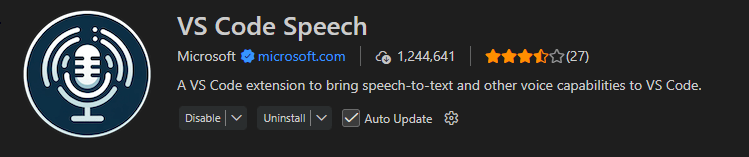
Once installed, you need to enable “Hey Code” to keep your fingers off the keyboard.

Open VS Code Settings (Ctrl + ,) and search for “voice keyword”.
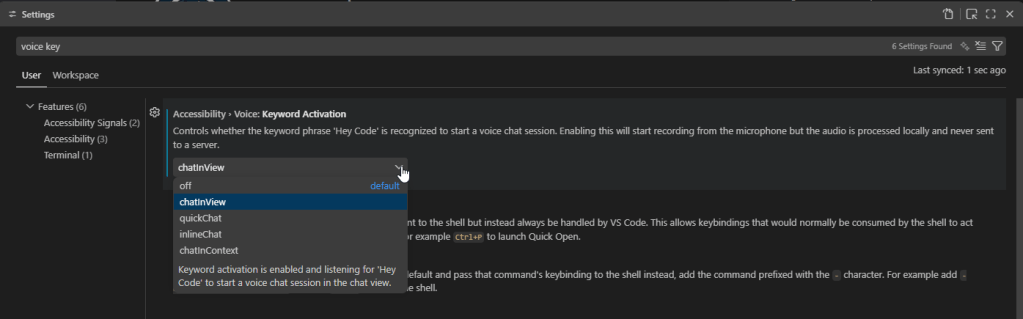
You will want to set your Keyword activation, and there are couple different options.

  • off: default value, your microphone will not be activated
  • chatInView: listens for ‘Hey Code’ when you are in the Chat view
  • quickChat: This is a lightweight, global chat UI window that you can open with
    Ctrl + Shift + P > Open Quick Chat
  • inlineChat: This opens chat directly in your editor at your cursor / selection with Ctrl + I
  • chatInContext: listens for ‘Hey Code’ wherever you are in VS Code.

Note: the description states that VS Code will record from your microphone, but the audio is processed locally and is never sent to a sever.

Once you say ‘Hey Code’ you can start talking, and GitHub Copilot Chat is listening.

To end dictation you have a couple of options.

  • Click the microphone button
  • Press Escape
  • Press Enter – which will also submit your chat request

You can also edit the text being generated as the microphone is listening, in case it didn’t understand you correctly.

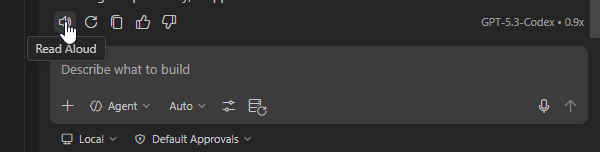
With “VS Code to Speech” enabled, you can also have the chat responses read to you. Once GitHub Copilot is done responding, you can click the speaker icon, and it will read what it responded with.
You can also dictate directly in the editor. Think writing your markdown instructions.

Ctrl + Alt + V will open your microphone within your editor, and you are ready to talk!
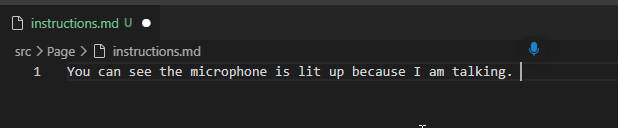

Thank you to Michael Megel for sharing this with the community on this blog post.

VS Code Speech – Extension Details

GitHub Copilot Playbook

GitHub Copilot Playbook: Getting Started

In the ever-evolving world of software development, staying ahead of the curve is crucial. One of the latest tools making waves in the industry is GitHub Copilot, an AI-powered coding assistant developed by GitHub and OpenAI. This innovative tool is designed to boost productivity, improve code quality, and foster innovation among developers. I have been diving deep into settings, use cases, instructions and prompt generation for the past couple of months, and am very excited about the progress being made. If you are not already “pair programming” with GitHub Copilot, I urge you get a license and start dive into the world of AI-enabled programming. It has completely changed not only my workstream, but my understanding on many different coding principles. This is going to be the beginning of a series of ongoing blog posts to help support you in your GitHub Copilot development journey.

Read More »
Live Share - VS Code Pair Programming

Live Share – VSCode Pair Programming

As a developer, we oftentimes participate in code reviews where we are either sharing our screen, or viewing someone else’s code. How hard is it to identify where some code needs to be changed, or it’s hard to follow someone navigating through their code.

Perhaps you are rubber duck debugging, and your code still isn’t making sense. That whole “it works in my Docker container, but not in the Sandbox”, and wouldn’t it be nice to debug WITH a co-worker? You can both set break points within the same code base, and debug within someone’s local Docker container.

Maybe you want to speed up development. One person is adding fields and pages, and someone else is adding some custom business logic, but it relies on those fields being created. We know that you need to add the related fields to the “sister tables” to the data flows through to all the related posted tables, but man, does that take some extra effort. You can share one person’s VS Code instance, and pair program!

If any of the above scenarios sound interesting to you, then you need to install the Live Share VS Code extension!

Read More »