
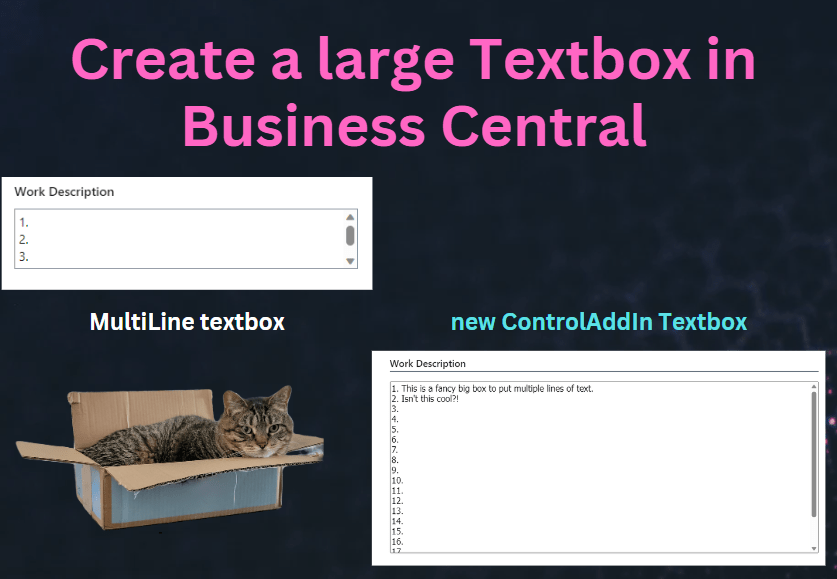
If you have worked with Business Central, I’m sure you have added a field to a page with the property MultiLine = true The problem is that you are limited to only 3 lines of text before you get a scroll bar. This can be annoying to a user, as they have to scroll to see all of their text. We can use a controladdin from Microsoft to “embed” our own textbox, meaning we can make it however big we want it.
For my example, I am going to put the Work Description into its own Fast Tab on the Sales Quote. It looks like it will hold 16 lines of text before you need a scroll bar. Big improvement over the 3 lines!

Within a page, you are going to add a usercontrol, with the control add-in being “Microsoft.Dynamics.Nav.Client.WebPageViewer”
There are two triggers that you will need to implement:
ControlAddInReady – this code is triggered when the control add-in is instantiated (aka it’s ready for the page)
Callback – this code is hit when the text within the textbox is changed. We are going to set a variable on the page to the data from the textbox, and update the Record’s Work Description.
The actual textbox is defined within a procedure called FillAddIn() This is some simple HTML that I wrote using the Business Central Style Guide. This is where it can be fun to change properties (like size, font, colors, etc) I set the max width and height to 100% so it takes up the entire fast tab. Using the OnChange of the textbox is when the Callback is triggered. This isn’t triggered after each character you type, rather, when the text box loses focus.
pageextension 70102 "TBM_SalesQuote" extends "Sales Quote"
{
    layout
    {
        modify("Work Description")
        {
            Visible = false;
        }
        addafter(General)
        {
            group(TBM_WorkDescriptionGroup)
            {
                Caption = 'Work Description';

                usercontrol(WorkDescUserControl; "Microsoft.Dynamics.Nav.Client.WebPageViewer")
                {
                    ApplicationArea = All;

                    trigger ControlAddInReady(callbackUrl: Text)
                    begin
                        IsReady := true;
                        FillAddIn();
                    end;

                    trigger Callback(data: Text)
                    begin
                        MyWorkDescription := data;
                        Rec.SetWorkDescription(MyWorkDescription);
                    end;
                }
            }
        }
    }

    trigger OnAfterGetRecord()
    begin
        MyWorkDescription := Rec.GetWorkDescription();
    end;

    trigger OnAfterGetCurrRecord()
    begin
        if IsReady then
            FillAddIn();
    end;

    local procedure FillAddIn()
    begin
        CurrPage.WorkDescUserControl.SetContent(StrSubstNo('<textarea Id="TextArea" maxlength="%2" style="width:100%;height:100%;resize: none; font-family:Segoe UI Segoe WP, Segoe, device-segoe, Tahoma, Helvetica, Arial, sans-serif; font-size: 12pt;" OnChange="window.parent.WebPageViewerHelper.TriggerCallback(document.getElementById(''TextArea'').value)">%1</textarea>', MyWorkDescription, 2048));
    end;

    var
        MyWorkDescription: Text;
        IsReady: Boolean;
}
Credit to Stefan Maron’s blog to get me started on this idea. I have updated my code and references to work with BC22.
If you want to learn more about Control Add-Ins for Business Central, click here.
If you are working with BC23, you may want to look into using a Rich Text control. You can see how to convert your page control to RichContent here
#msdyn365bc #bcdevelopment #businesscentral
 BC Development Notebook
[…] implementing the Rich Text boxes you see here check out Tonya Bricco-Meske’s post about it: Create a large Textbox in Business Central – BC Development Notebook. Also how to add that Rich Text to a report: BC23 Rich Text content on Reports – BC Development […]
LikeLike