
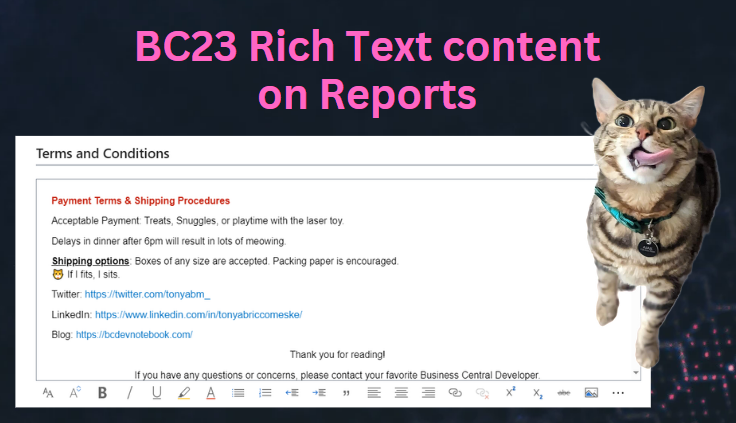
My most recent project has large footers being added to the bottom of their reports to display Terms and Conditions. This is something fairly common that is requested, and I’ve always shied away from hard-coding anything inside the report layout. If an address changes, then they have to get a developer involved to change the text vs being able to modify it themselves on a setup page. You could use a blob field to store all of the Terms and Conditions, but then you had no way to format a giant block of text, until now. ✨Business Central version 23 now has the power of leveraging the built-in rich text editor, and we can display that formatted text on our reports (with a few gotchas).
Creating a Rich Text Editor Control
In order to utilize the Rich Text Editor, we need to create a blob field on a table. We use a Blob because it allows us to handle larger and more complex text. You will also want to create some procedures that will allow you to work with the content of your Blob field. More specifically, you will need to be able to Get and Set the content of the field. We do this by “streaming” the content, and by putting this code in procedures at the table level, we are able to reuse this code throughout Business Central (my examples will be on a Page and Report).
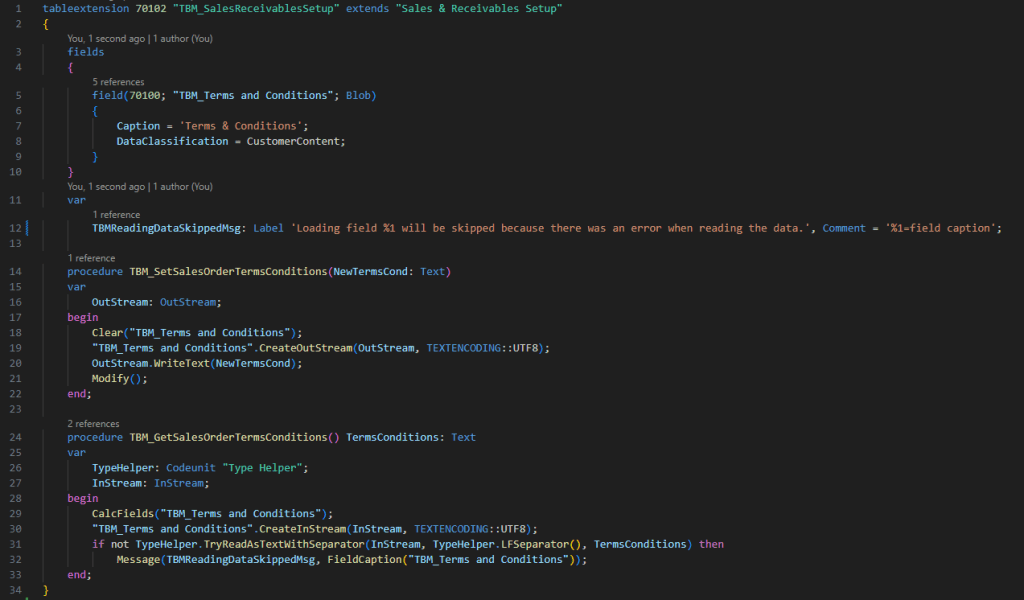
For this demonstration purpose I created a new Terms and Conditions field on the Sales & Receivables Setup table as part of a table extension. You can see my two custom procedures that will be used by the page and report to Get and Set the value.
Adding the Rich Content to the Page
We must then write the code for the page that will give us access to our Blob field through the use of the Rich Text Editor. In order to utilize the Rich Text Editor functionality, there are a few properties we must set.
- The field must be in its own FastTab group
- The field must have the property MultiLine = true
- The field needs the property ExtendedDataType = RichContent
I like setting the Caption of the FastTab group, as opposed to using the Field Caption (since this textbox will be the only thing in the group). The “field” being displayed is actually a Text variable without a length. We then pass the blob value back and forth between the variable and the table, as behind the scenes the Rich Text will actually be stored as HTML.

Once I published the app, this is what the Rich Text Editor looks like.
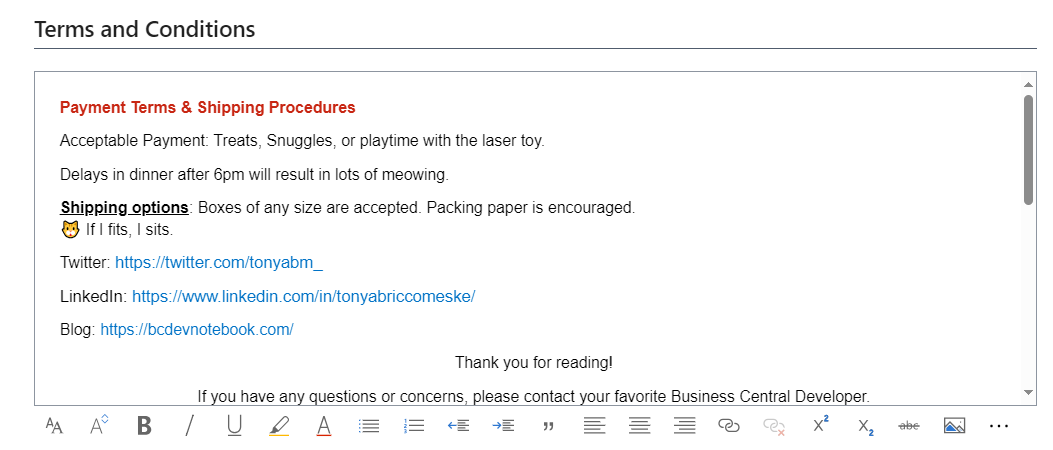
As you can see, we have the ability to add formatted text. The links are actual hyperlinks, and we also have the capability to add pictures and tables.
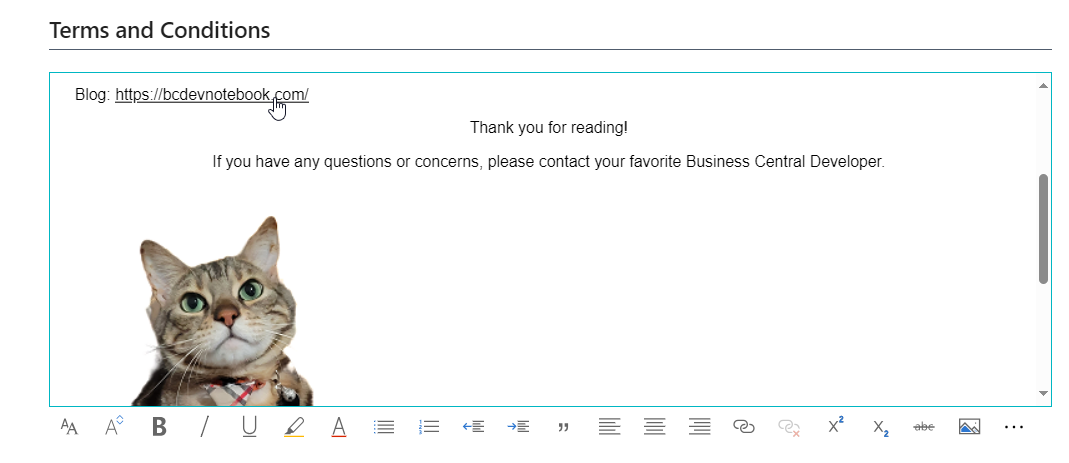
What is interesting about the image I inserted is that it is embedded within the HTML. This means that its not stored in a separate table, and it’s not stored in any online storage. You can explore the documentation on Microsoft Learn about Rich Text and content controls here
Can we use this on a Report
Now to the fun part. I was wondering if I would be able to use this newly formatted text as the Terms and Conditions on my RDLC Report Layout. The principles are similar to working with the page, we need to get the value of the Blob field. I then set it to a variable that I send to the RDLC layout via a column.

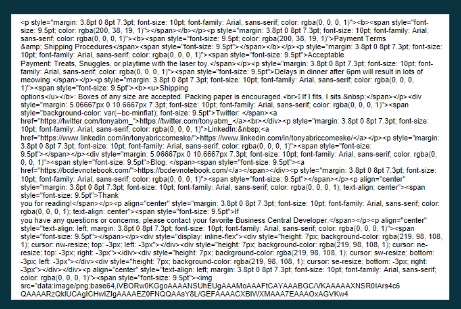
You may note that I message the variable on line 28. That’s because I wanted to show you that the actual text within the Blob is stored as HTML.

If we were to just add the TermsConditions column to the report layout, it would render it as plain text…which is just the HTML as plain text. Yikes.
So how do we get the report to display the formatted HTML?
We need to change the properties on the TermsConditions field within our Report Layout.
Left click on the field so that the <Expr> tag is highlighted
Right click on the highlighted <Expr> tag and choose Placeholder Properties...

On the General tab, select the HTML - Interpret HTML tags as style radio button

When we publish these changes, we see that our HTML is now formatted (semi) correctly.
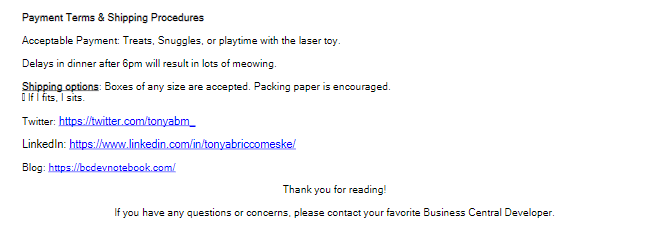
We are restricted by the SQL Reporting Engine in what HTML markup elements are processed. According to the following article on Microsoft Learn these are the HTML tags that will be processed:
- Hyperlinks:
<a href> - Fonts:
<font> - Header, style, and block elements:
<h{n}>,<div>,<span>,<p>,<li>,<hn> - Text formatting:
<b>,<i>,<u>,<s> - List Handling:
<ol>,<ul>,<li>
Any other HTML tags will be ignored (like our image or a table). If the HTML is not well-formed, it will be rendered as plain text. It’s nice that we can do things like multi-line text, emphasize important points, and even have clickable hyperlinks. I’m still trying to wrap my head around the colors. I see that they are stored as rgba values color: rgba(200, 38, 19, 1) so I’m wondering if it needs to be converted to a hex value. I also noticed that it failed to render my emoji. 😿
One more thing to keep in mind: If the HTML exceeds the size of the page, it will not trigger a page break and continue onto the next page. This means your HTML will be truncated.
Overall, I think the Rich Text content is a huge improvement for customers! We now have a multi-line textbox with a rich toolbar, keyboard shortcuts, and the ability to copy/paste formatted values. Let me know if you found this helpful, and how you are using the Rich Text in your Business Central environment!
Link for related code examples can be found here
#businesscentral #msdyn365bc #reports #richtext #BC23
 BC Development Notebook
[…] If you are working with BC23, you may want to look into using a Rich Text control. You can see how to convert your page control to RichContent here […]
LikeLike
Thank you for this post! To me this simply underscores the need for a new reporting tool for BC. Can you do any of this HTML styling on a Word report layout? I love the ability to use the new Rich Text Editor for blobs, but the lack of support for properly formatting these fields on reports has greatly limited our implementation of the rich text editor feature.
LikeLike
[…] writing my last blog post BC23 Rich Text content on Reports I was asked if I would consider doing a small pull request to the Microsoft Learn docs article that […]
LikeLike
[…] If you need help implementing the Rich Text boxes you see here check out Tonya Bricco-Meske’s post about it: Create a large Textbox in Business Central – BC Development Notebook. Also how to add that Rich Text to a report: BC23 Rich Text content on Reports – BC Development Notebook. […]
LikeLike