
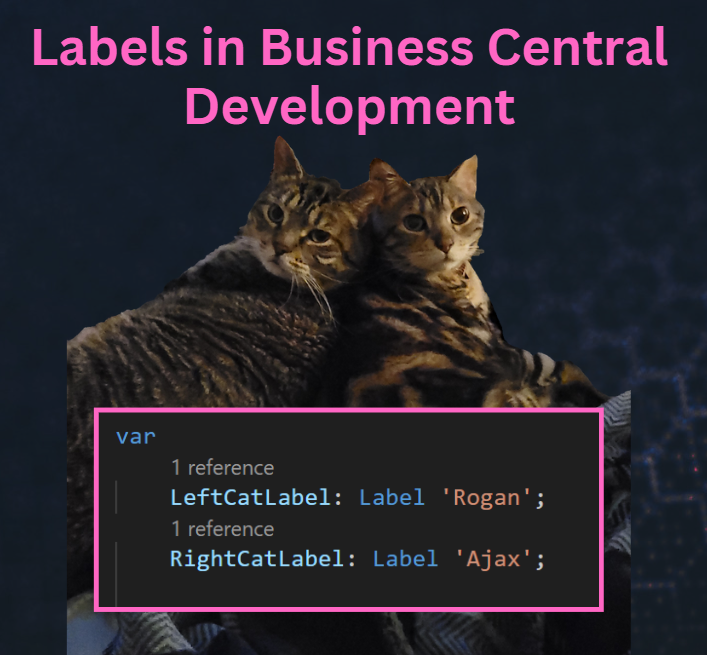
Labels are string constants that can be translated into multiple languages. They can be used for things like captions, descriptions, questions, error messages, or other text constants. Labels have a specific syntax, which includes a text constant, followed by three optional parameters.
| Parameter | Type | Description |
| Comment | Text | Used for general comments about the label, specifically giving details about the placeholders in the label. |
| Locked | Boolean | When Locked is set to true, the label shouldn’t be translated. The default value is false. |
| MaxLength | Integer | Determines how much of the label is used. If no maximum length is specified, the string can be any length. |
Let’s take a look at Page 42 for the Sales Order. Some different examples of labels are the following:
Text001: Label 'Do you want to change %1 in all related records in the warehouse?';

Text002: Label 'The update has been interrupted to respect the warning.';

OpenPostedSalesOrderQst: Label 'The order is posted as number %1 and moved to the Posted Sales Invoices window.\\Do you want to open the posted invoice?', Comment = '%1 = posted document number';

EmptyShipToCodeErr: Label 'The Code field can only be empty if you select Custom Address in the Ship-to field.';

SureToRejectMsg: Label 'Rejecting this order will remove it from your company and send it back to the partner company.\\Do you want to continue?';

PowerAutomateTemplatesFeatureLbl: Label 'PowerAutomateTemplates', Locked = true;
As you can see, there are multiple different uses for labels.
By using a label, if someone happens to be using a different language, the string literal would be translated, as opposed to using a text constant, which would be displayed as written.
Report Labels
When working with reports, we oftentimes have headings for fields that are displayed in a table, or have labels to identify different data items displayed on the report. Instead of creating variables of the Label data type, and passing them through as part of the dataset, we should leverage the labels section of the AL Report object. By adding the text constants to the label section, the labels are sent as parameters to the report layout, which improves performance.
Here is an example report with a few different labels:
report 70100 "TBM_Custom Sales Report"
{
    UsageCategory = ReportsAndAnalysis;
    ApplicationArea = All;
    DefaultRenderingLayout = TBMRDLCLayout;

    dataset
    {
        dataitem(SalesHeader; "Sales Header")
        {
            DataItemTableView = sorting("Document Type", "No.") where("Document Type" = const(Order));
            RequestFilterFields = "No.", "Sell-to Customer No.", "No. Printed";
            RequestFilterHeading = 'Sales Order';

            column(No; "No.") { }
            column(TermsConditions; TermsConditionsVar) { }
            column(CustomerLabel; StrSubstNo(CustomerLbl, "Sell-to Customer No.", "Sell-to Customer Name")) { }

            dataitem(Line; "Sales Line")
            {
                DataItemLink = "Document No." = field("No.");
                DataItemLinkReference = SalesHeader;
                DataItemTableView = sorting("Document No.", "Line No.");
                column(LineNo_Line; "Line No.") { }
                column(SalesLine_No; "No.") { }
                column(Description_Line; Description)
                {
                    IncludeCaption = true;
                }
            }
        }
    }
    rendering
    {
        layout(TBMRDLCLayout)
        {
            Type = RDLC;
            LayoutFile = './App/AL Code/Report/Layouts/TBMCustomSalesReport.Layout.rdl';
        }
        layout(TBMWordLayout)
        {
            Type = Word;
            LayoutFile = '.App//AL Code/Report/Layouts/TBMCustomSalesReport.Layout.docx';
        }
    }
    labels
    {
        SalesOrderLbl = 'Sales Order No.';
        ReportTitle = 'My Test Sales Report';
        ItemNoLbl = 'Item No.';
    }

    trigger OnInitReport()
    begin
        SalesSetup.Get();
        TermsConditionsVar := SalesSetup.TBM_GetSalesOrderTermsConditions();
        Message(TermsConditionsVar);
    end;

    var
        SalesSetup: Record "Sales & Receivables Setup";
        TermsConditionsVar: Text;
        CustomerLbl: Label 'Customer %1: %2', Comment = '%1 = Customer No., %2 = Customer Name';
}
Labels that are defined within the Report Label section are protected, meaning you cannot send them out as part of your dataset (see #1 in the image below). You can see that we are getting an error that ‘SalesOrderLbl’ is inaccessible due to it’s protection level. We don’t have to worry about “sending” our labels out with the dataset, as they will be sent as parameters for the report when generated.

If you want to use the placeholders within a label with data being generated as part of your report, you would need to create a variable for the label, and send it out as part of the dataset (#2 in the image above).
To use a label with placeholders for data, we can look at the the CustomerLbl. When adding it to our dataset, it would look like this:
column(CustomerLabel; StrSubstNo(CustomerLbl, "Sell-to Customer No.", "Sell-to Customer Name")) { }
One other way we can send labels out to our report layouts is by setting the IncludeCaption = true property on fields. These captions will also then be sent out as parameters that we can use on our layouts.
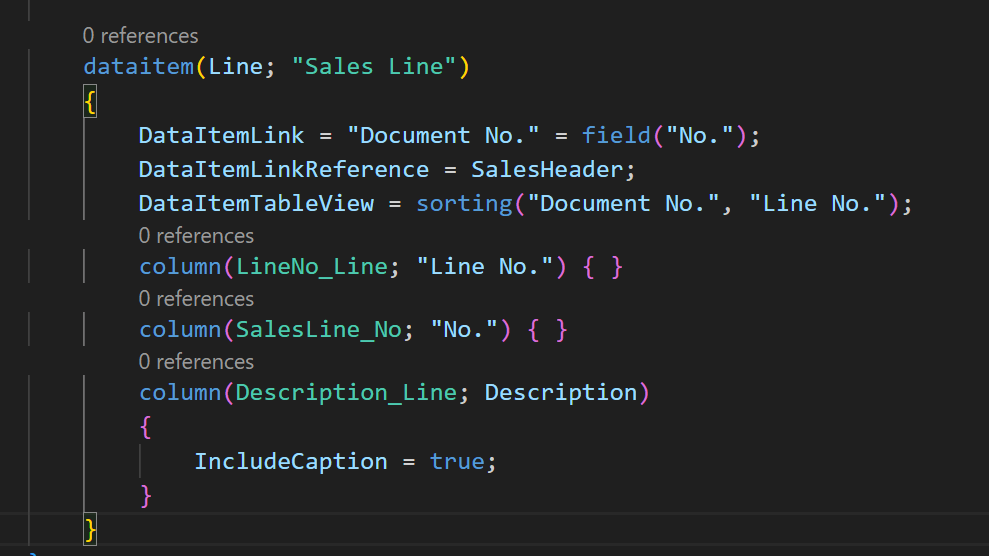
For example, we set IncludeCaption = true for the Description_Line. We can then see within the Parameters we have Description_LineCaption.
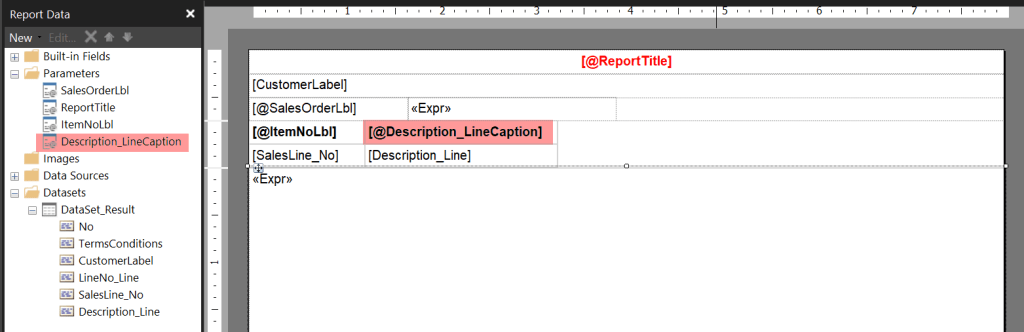
Once you build your AL Report, open your RDL layout file with Report Builder. The report labels will be found within Parameters, instead of in the Datasets folder.
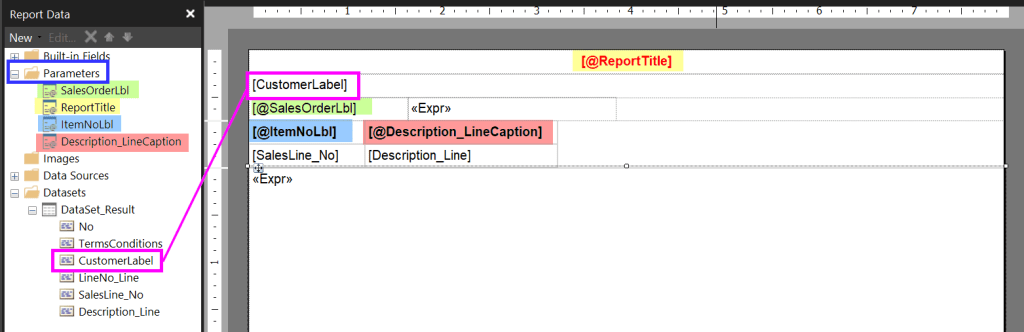
In the image above, you can see ReportTitle, SalesOrderLbl and ItemNoLbl are part of the Parameters.
CustomerLabel (which is outlined in the pink box) is part of the dataset, because if you remember, this was a variable label we created with placeholders to display the Customer No. and Customer Name.
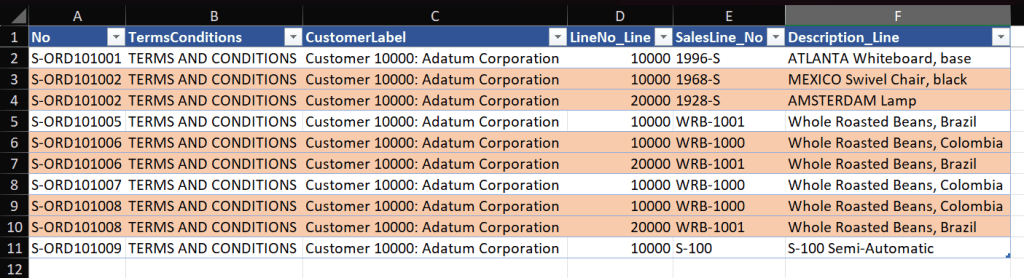
Using a Cronus Demo Database, I ran the report filtered to Customer 10000.
When looking at the dataset, you can see that the CustomerLabel was sent out with every record. The labels that are a part of the report’s Labels section, and were sent as parameters to the layout, are not a part of the dataset. The CustomerLabel that we sent out with placeholders is part of the dataset.
In conclusion, labels are a powerful tool with in Business Central AL development, simply because string constants can be translated into multiple languages. They are versatile, being used for captions, descriptions, questions, error messages, and other text constants. Seeing the labels as parameters in Reports is something that is underutilized, and is definitely something I plan to utilize more in my development.
For more information about Working with Labels in Business Central, click here
For more information about Report Labels, click here
You can find my full code example for report 70100 “TBM_Custom Sales Report”, that outlines some of the different label types, on GitHub
#msdyn365bc #businesscentral #reporting
 BC Development Notebook
Great post – Just one remark on IncludeCaption = True and the Labels section in the report. They both face problems (don’t work properly) if you change the report’s execution language dynamically during the execution. So, we have to careful if we need that capability.
LikeLike
[…] development where we can add Labels and use them in our report layouts. I actually blogged about it here. The “gotcha” is these labels are translated into the User’s Language BEFORE the […]
LikeLike