
Excel Reports are extremely useful when you need a detailed dataset. They not only provide a denormalized dataset, but also facilitate the creation of meaningful data connections, pivot charts, visualizations and more. A notable drawback has been the cumbersome process of generating an Excel Report from Business Central. This involves running a report request page, downloading the file, then opening and enabling the workbook before you can access any data. Moreover, once the report is generated, you are left with a static dataset that lacks a refresh option. This means the data remains unchanged from the moment the report was run.
In Business Central 23.3 we were given the ability to create refreshable datasets by calling Business Central APIs from within Excel. Here is a deep dive into how you can create a refreshable Excel Report Layout — all you need is a Business Central API and a Report.
[NOTE]: This blog post was written before the release of BC25 (2024 release wave 2). Extensive improvements have been made to make connecting to APIs through Excel Report Layouts easier. So if you are working with BC25, please check out this blog post
Start with a Business Central Report
From Business Central, Run a report.
For my example, I am going to use the Standard Sales-Invoice report. (It really doesn’t matter which report you use, as this is just forming a “connection” to your Business Central Environment).
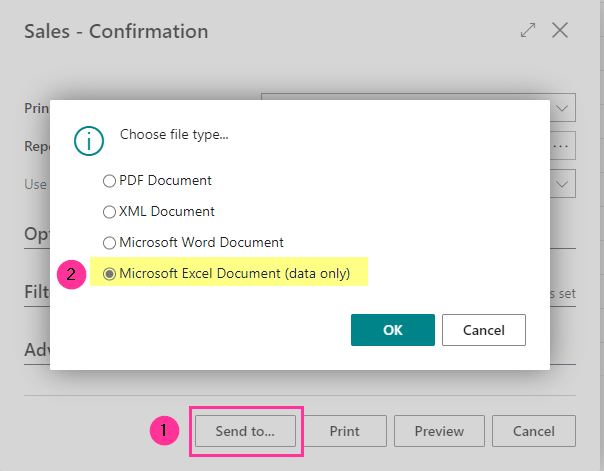
On the Request Page, click Send to… > Excel (data only).
When you open the report you will see the Data tab, and the Caption Data tab. If you right-click on a tab, and Unhide, you will see a new tab called Aggregated Metadata. This sheet contains a wealth of information about the report that was run, as well as the environment it was run from.

There are four tables within the Aggregated Metadata worksheet:
1. ReportMetadataValues
2. ReportRequestValues
3. ReportRequestPageValues
4. ReportFilterValues
The first table is ReportMetadataValues. This contains information about the report itself. What extension was the report object a part of, what extension version, the Object ID and Object Name.

We can also see some newer properties that can be set within the request page region of the report.
- AboutThisReportTitle
- AboutText
- HelpLink

At the time of this blog post, you can only set these additional properties to be used with Excel Report Layouts on new reports (not Report Extensions).
The second table ReportRequestValues is extremely important for creating refreshable Excel reports with APIs. You may be wondering why we need a report dataset from Business Central to accomplish this goal, rather than just creating an Excel workbook with an OData feed to an API. The parameters that are part of the ReportRequestValues give you crucial information you can use to create a dynamic URL.

At the time of this blog post, you can see that the Tenant Id is not an actual Tenant Id. This is something Microsoft is looking into, so hopefully we can use it as a variable in the future, enabling us to move this Excel Report Layout easily between Tenants. For now, I have been hardcoding this value for customers.
[UPDATE]: In BC25, we have a TenantEntraId available. You can see more information in this blog post here
We will need to use the Environment name and Company Id when constructing our API URL.
💡Note: At the time of this blog post, you can see that the Company Id has curly braces around it. We only need the actual value of the Company Id. So how do we get a value that we can use?
I created a START worksheet within my Excel Report. I inserted a table called ParamTable
This has a column for a Parameter and a Value. If you need to have input/filters from users, this is a great place to collect data from them.
I work with a client that prints data on pre-printed stock. Think of warranty registration forms, notary forms, etc. If you created an Excel Report, you could format the worksheet much easier than formatting an RDLC report layout. If I’m using address information from the Posted Sales Invoice, I can use a parameter of SalesInvoiceNo to filter the API for the information I need.

I also added a parameter of EncodedCompany, that is doing some Excel Substitution to remove the curly braces. =SUBSTITUTE(SUBSTITUTE(‘Aggregated Metadata’!E6, “{“,””),”}”,””)
The reason we are making this modification in a separate table / worksheet from the Aggregated Metadata is because when the Excel Report is run, the data in the Aggregated Metadata worksheet will be refreshed with new data.
If you are working with a newer Excel Report Layout, Microsoft has actually removed the curly braces, so we wouldn’t need to do this extra work. We can actually use an XLOOKUP to get the value as well:
=XLOOKUP(“Company Id”,ReportRequestValues[[#All],[Request Property]],ReportRequestValues[[#All],[Request Property Value]],”none”,)
Connecting Excel to an API
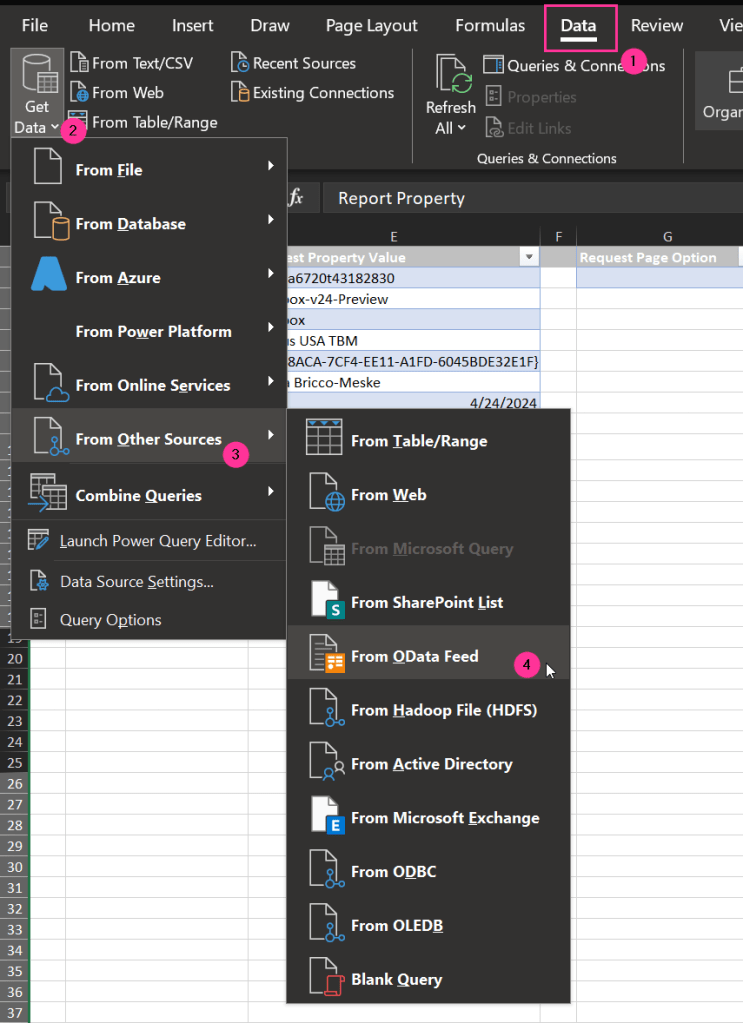
Within Excel you will want navigate to
1. The Data tab in the Ribbon
2. Get Data
3. From other Sources
4. From OData Feed
Let’s use the following base URL to get Excel connected to Business Central (replacing the Tenant Id and Environment Name with values from your Business Central Environment)
https://api.businesscentral.dynamics.com/v2.0/{{Tenant Id}}/{{Environment name}}/api/v2.0/
Here you will paste the base URL and click OK.

You will now be prompted to log in to the environment. This is the easy part! Click Organizational Account and then Sign in.

💡Note: this is the same login you use to log in to that Business Central environment. You will want to leave the URL that populates on this page, so you can access all of the APIs within this tenant.
Once you are logged in, you will get a page with the base list of APIs you are attempting to connect to.

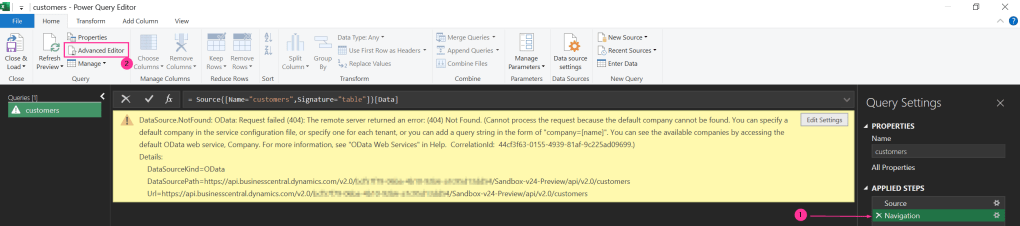
If you select one of these entities, you will most likely get an error like the following:
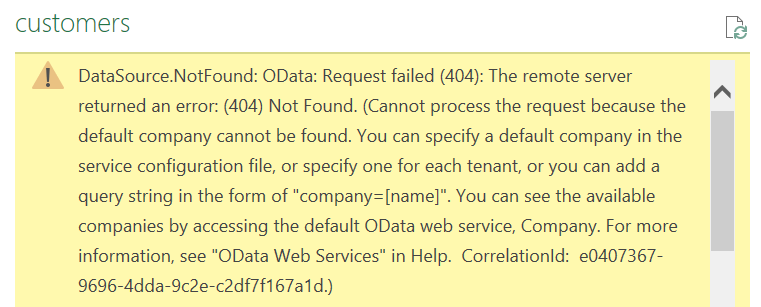
What this is saying is because there are multiple companies, we need to specify a company as part of the URL. This is going to require us to use the Advanced Power Query Editor. Click Transform and let’s get to constructing our dynamic URL.
Creating the API connection using the Advanced Power Query Editor
When the Power Query Editor opens, the first thing I did was delete the “Applied Step” on the right for Navigation. (This was essentially selecting a specific API). We have to make some changes to the URL being used in order for it to be dynamic, so on the Home tab of the Ribbon, in the Query section, click Advanced Editor.
The first thing we are going to do is get our Environment Name.
EnvironmentName = Excel.CurrentWorkbook(){[Name="ReportRequestValues"]}[Content]{1}[Request Property Value]
[NOTE]: In BC25, you would want to change this to EnvironmentName = Excel.CurrentWorkbook(){[Name=”ReportRequest.EnvironmentName”]}[Content]{0}[Column1] and leverage using Named Formula. This blog post used a direct reference that will be “broken” by the addition of the TenantEntraId
This will create and populate a variable for Environment Name from the ReportRequestValues table (that is located on the Aggregated Metadata worksheet). The table is loaded as an array, with the first “Request Property Value” being in position 0 for Tenant Id, making the Environment Name position 1.
We also need to get the EncodedCompany from our ParamTable
EncodedCompany = Excel.CurrentWorkbook(){[Name="ParamTable"]}[Content]{1}[Value]
Again, this is the second value in the Param Table (where I named the column Value), so that is why we are getting position 1 from the array.
We also need to know the EntitySetName we are connecting to. Since I am working with Sales Invoices, the entity set name is salesInvoices.
This is what your Advanced Query should look like.

let
  EnvironmentName = Excel.CurrentWorkbook(){[Name="ReportRequestValues"]}[Content]{1}[Request Property Value],
  EncodedCompany = Excel.CurrentWorkbook(){[Name="ParamTable"]}[Content]{1}[Value],
  Source = OData.Feed("https://api.businesscentral.dynamics.com/v2.0/putTenantIdHere/"& EnvironmentName & "/api/v2.0/companies("& EncodedCompany &")/salesInvoices", null, [Implementation="2.0"])
in
  Source
If you wanted to use a parameter from the users, like the SalesInvoiceNo, you would just do something like this:
SalesInvoiceNo = Excel.CurrentWorkbook(){[Name="ParamTable"]}[Content]{0}[Value]
and just add on as a filter at the end of the URL like this
Source = OData.Feed("https://api.businesscentral.dynamics.com/v2.0/putTenantIdHere/"& EnvironmentName & "/api/v2.0/companies("& EncodedCompany &")/salesInvoices?$filter=number eq '" & SalesInvoiceNo & "'", null, [Implementation="2.0"])
If you need more information about working with APIs, check out this documentation
You may then be asked about Privacy levels – I set them to Organizational.
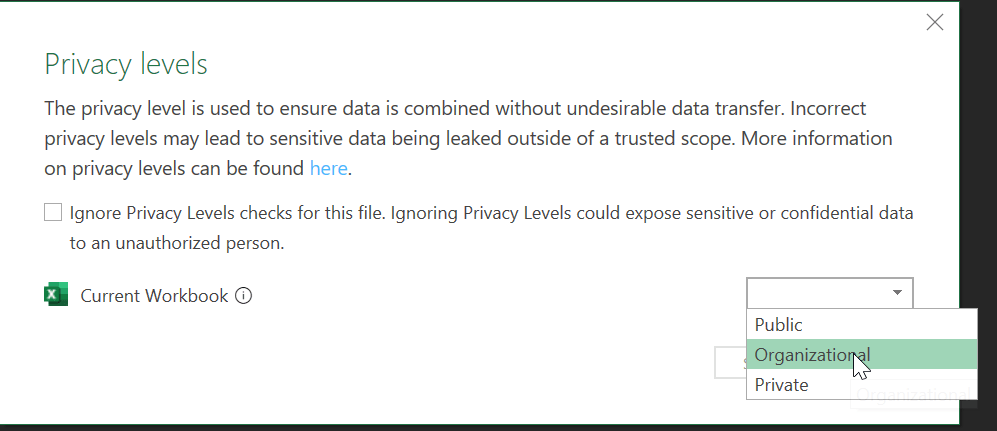
At this point, when you click Done, it should load the data from your API.
You should then be able to “Close & Load” the results of the API to a new table in your workbook. You would then create your Excel Report Layout based on this new table (instead of the Data table). You would need to keep the Data table as part of the Excel workbook, since it is part of the “Data Contract” between your Excel Report Layout and Business Central.
Once you have created the Excel Report Layout – using charts, pivot tables, slicers, etc, you just have to Import the layout to Business Central. You can reference this blog post for more information on working with Excel Report Layouts.
So how is it refreshable?
In order to grab the latest data from Business Central, you will need to go to the Data tab in Excel and click Refresh All. This is much faster than the current process of running an Excel Report (running a report request page, downloading the file, then opening and enabling the workbook before you can access any data.) Now, this Excel Report can live on your computer, and you can work with it as needed. You could even add a Macro to refresh the data for you.
💡 Just remember you cannot upload a macro-enabled Excel workbook back into Business Central as an Excel Report Layout.
A few more notes…
How to use a custom API
If you are thinking about using a custom API, the URL is constructed like the following:

The variables in green should come from the ReportRequestValues table from running the report. This would allow us to import this report into different environments (Sandbox vs Production) as well as distribute to multiple customers on different tenants, since this data would be generated when the report is run from Excel. The variables in blue would come from the API that was published.
Let’s look at an example query API in Business Central.

Using the variables from the boxes, we would formulate the following URL:

Conclusion & Resources
I did work with Copilot quite a bit to come up with the Excel formulas I used to build out this refreshable API. Here are a few other resources I used to make this all possible:
Refreshable Excel Reports with data from Dynamics 365 Business Central Note: this example is using an OData connection instead of an API connection.
Create A Parameter Table For Your Power Queries (youtube.com)
Please reach out if you have any questions on this ground-breaking content. I would also love to hear how you are using these refreshable APIs.
#BusinessCentral #msdyn365bc #excelreporting #reporting
 BC Development Notebook
Great article and I am excited to start using more often. I have a question if I copied this expression/function into START sheet it is not getting the company id: =SUBSTITUTE(SUBSTITUTE(‘Aggregated Metadata’!E6, “{“,””),”}”,””). What I am missing from your instruction above?
LikeLike
Hi Carlos! So I would probably physically map to the field in Excel. So instead of copy/pasting, I would start writing the expression, and then click to map to the Company Id value in the Aggregated Metadata sheet. I would also verify that your Aggregated Metadata sheet has values.
LikeLike
My first issue was character double quotation copied from this website it was different from USA or my keyboard.
I was able to build a query but got fifferent error when connecting:
Details: “Microsoft.Mashup.Engine1.Library.Resources.HttpResource: Request failed:OData Version: 3 and 4, Error: The remote server returned an error: (404) Not Found. (Not Found)
LikeLike
I did a little searching. Double check the version of the API you are calling.
LikeLike
Thank you again for your response, i figured out. The page was created by another developer and was not an API page. It was a regular list page. that was all.
I did not have the original source code.
I found just building the url without the entity name and all api comes except “mine”.
Best regards
LikeLike
[…] Central is getting even easier in the 2024 wave 2 release (BC25). The biggest change from my original blog post – no more hardcoding Tenant Ids, and we even have some help with named formulas to make […]
LikeLike