

You have an AL project that you want to work on within your new container. How exactly do you connect your code to your container BC instance? It’s pretty easy!
Within your AL Project you should have a .vscode folder, with a file called launch.json This is a configuration file that is used to define settings for launching and debugging applications. The following configurations should be set to work with a Business Central Container:
launch.json settings

– “type” : “al” since we are working with the AL language
– “request” : “launch” at this time we are going to Launch Business Central when deploying or debugging. Other options available are “attach“
– “name” : “What to use to identify your container” This is the name you will see if you have more than one configuration in your launch.json. I would suggest the name of your container
– “server” : “http://containername” Again, you can find this in the Docker Desktop
– “port” : 7049 This is the Development Port used to access Business Central. The default developer port is 7049, and is what is used when creating containers
– “tenant” : “default” If you were developing against a SaaS sandbox, you would put the client Tenant Id here. For Container development, you can set “default”
– “authentication” : “UserPassword” You can set this to UserPassword, unless you changed this when creating your container.
Once you have your configuration setup, it’s time to connect to your container.
Download Symbols
You now need to download the symbols from your environment. When you download symbols, you are downloading the metadata of the objects within that environment to gather information about the tables, pages, reports, codeunits and more that are in that environment. This metadata, or symbols, is necessary when extending and customizing Business Central.
To generate symbols, you will want to open the Command Pallet within VSCode by hitting F1. You will then want to type “download symbols”.

You should see the AL Command. If not, you will want to verify you have the AL Language extension for Microsoft Dynamics 365 Business Central installed within VSCode.

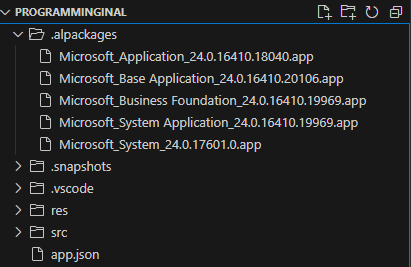
Once you are able to establish a connection to your docker container, your symbols will be found in the .alpackages folder.
Other properties
Some of the “optional” properties I like to set when working with Business Central:
– “enableLongRunningSqlStatements” : “true” Specifies whether the debugger enables long running SQL Statements in the debugger window
– “enableSqlInformationDebugger” : “true” This allows you to examine your code’s effect on the Business Central database. You will have access to the Number of SQL executes, Number of SQL Rows read, and the latency in milliseconds for how long it took to hit your breakpoint. In addition, you have the ability to examine the last 10 SQL statements that were executed.
– “breakOnNext” : “WebClient” This specifies the session type that you can connect to. WebClient is the standard BC Client. Other options include
–> “WebserviceClient” this is for web API-based clients
–> “Background” this is for background sessions, like Job Queues.
For more properties you can set in your launch.json, check out the Microsoft documentation here
#msdyn365bc #businesscentral #bcdevelopment
 BC Development Notebook
[…] If you need some guidance connecting to a Docker Container, check out my tips for Connecting to a Docker Container here […]
LikeLike