

When we talk about reporting and analytics it’s no longer just the world of RDL and Word Report layouts or Power BI. We have Excel Report layouts, Ad-hoc Data Analysis with queries and page Analyze Data feature. This blog post will focus on how to use a query when building out your report dataset.
Let’s say we need a report listing Overdue Customer Invoices. We need the Customer information from the Customer table, and we need some information from the Customer Ledger Entries. We know that queries can join together data from multiple tables, and we can leverage them within the User Interface by running them directly. So within Business Central we can see this combined data on a page. Yes, you do have the ability to send the data to Excel, but what if we wanted a simple PDF report showing all of this data? We could easily use this same query to populate a report dataset.
How to use a query in a report
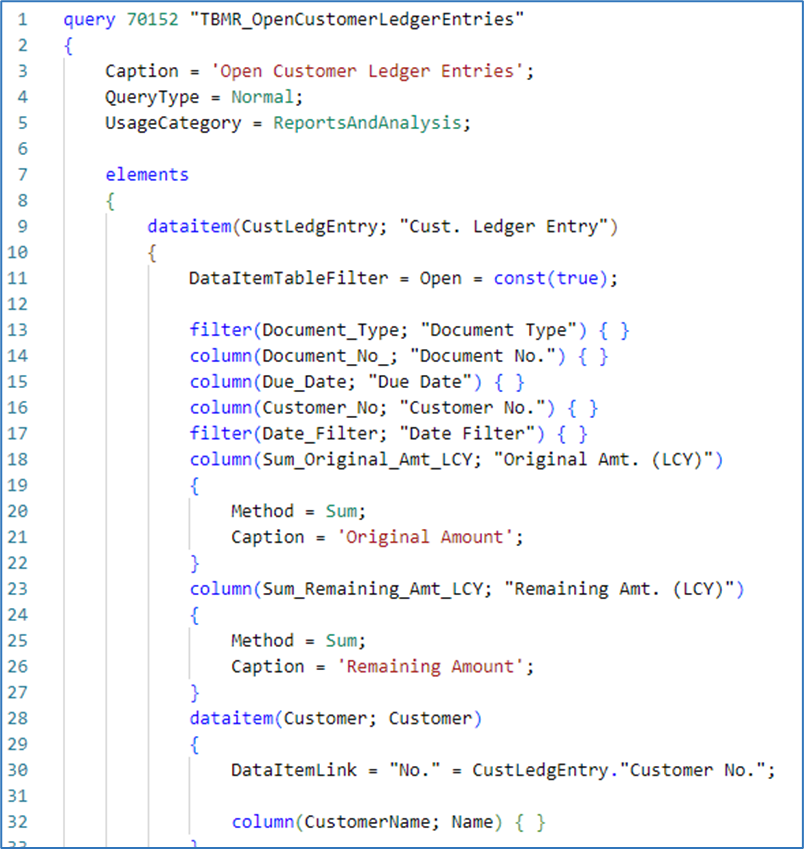
First, create your query. This will produce a dataset with Open Customer Ledger Entries, and also provide Customer information.
Now, it’s time to build out your report!
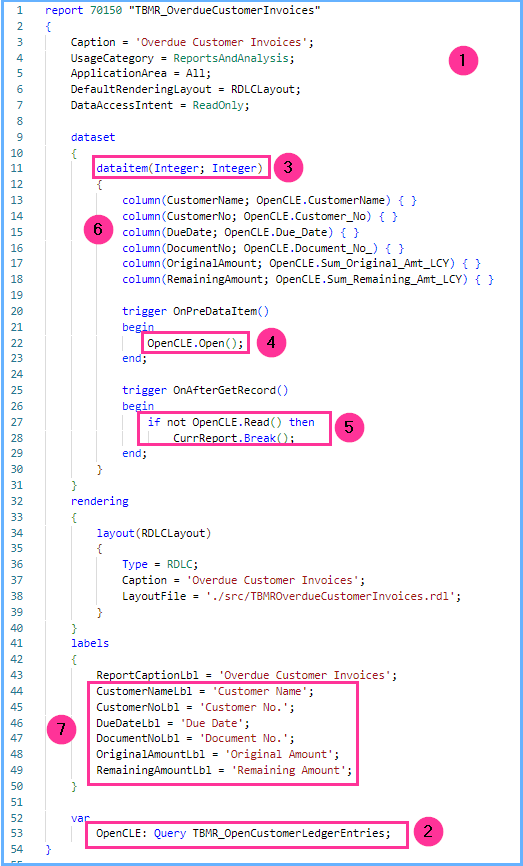
- Create a report object
- Within your report, add a variable for your query object
- Your dataset will have one dataitem – an Integer table.
- Within the OnPreDataItem trigger of the Integer table you are going to open the query.
- Then in the OnAfterGetRecord trigger you are going to read your query.
- Make sure if you are not reading from your query, to do a CurrReport.Break()
- This is what will stop the Integer data item from looping
- Make sure if you are not reading from your query, to do a CurrReport.Break()
- You are then going to map each query column to a column in your report dataset.
- Make sure you create labels to use as headers within your report
- Note: Captions within the column definition will throw a warning that will be deprecated from Report objects in the future. Since we are using a query to set our column data, we cannot use the IncludeCaptions property, as that is only available for tables.
Your Report should look something like this 🤓
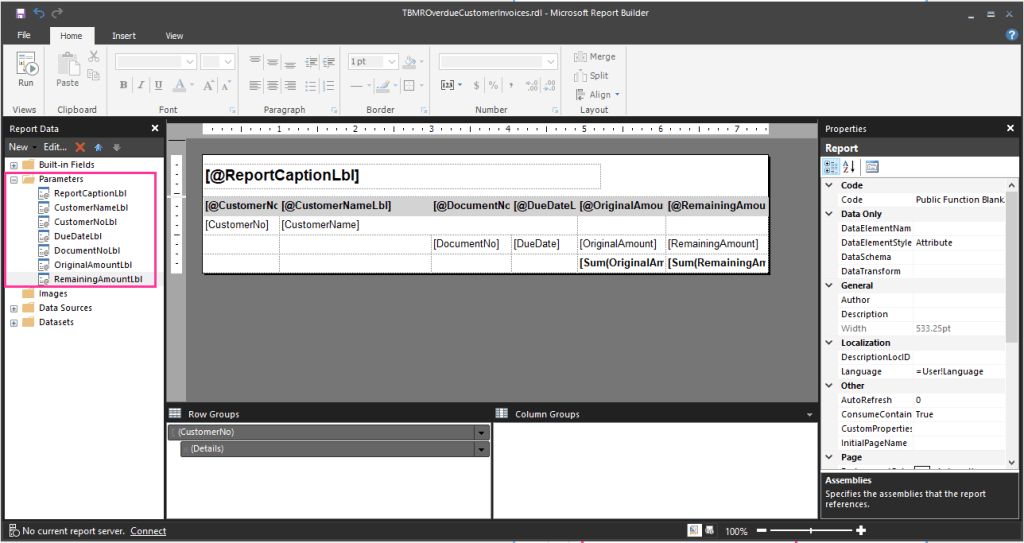
I then threw together a quick RDL layout. Grouped by Customer, sorted by Due Date, and added subtotals. You can see in my layout that the labels can be mapped from the Parameters folder.
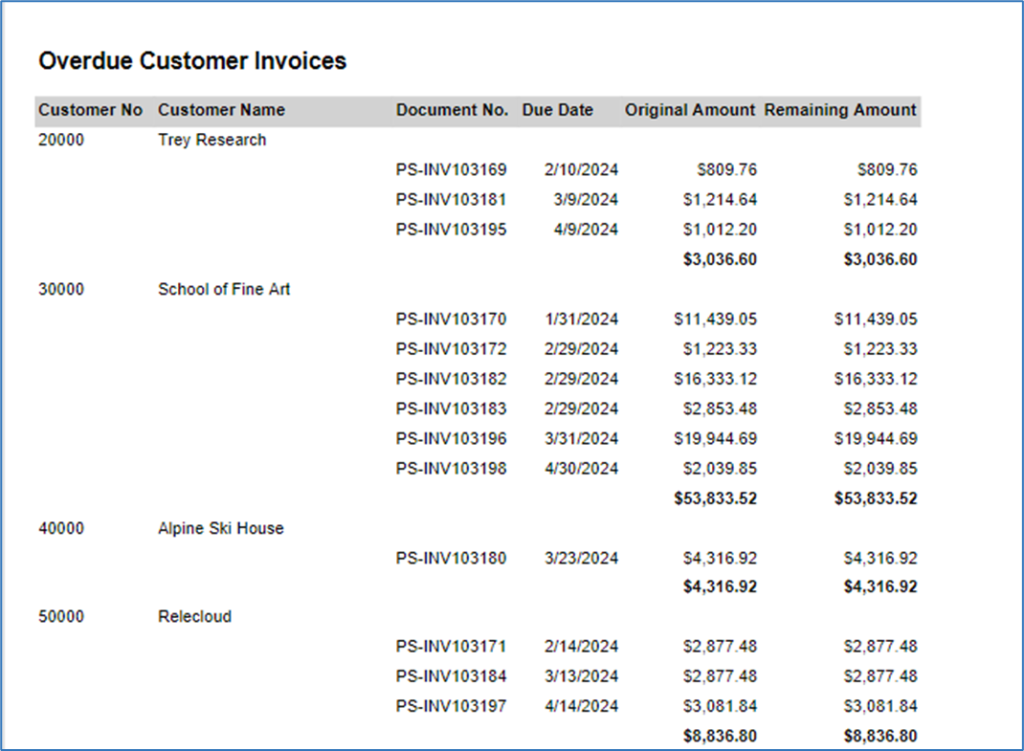
Here is the final result.
You can view Microsoft Learn documentation here
You can also watch a video walk-through by fellow MVP Erik Hougaard here
To view my full code samples, check out my GitHub Repository
 BC Development Notebook
[…] we look at the Overdue Customer Invoices report we built in a previous blog post, where we have query object populating the dataset, we need a way for the users to get the selected […]
LikeLike