

When developing reports, do you have to consider report usage in different languages?
One of my latest implementations operates in English and French-Canadian. This blog posts collects some of the “gotchas” when developing reports for multiple languages.
The Basics
By default, the language of text and format of numbers, dates, and times in a report are based on your working language and region settings.
These are set on the My Settings page.
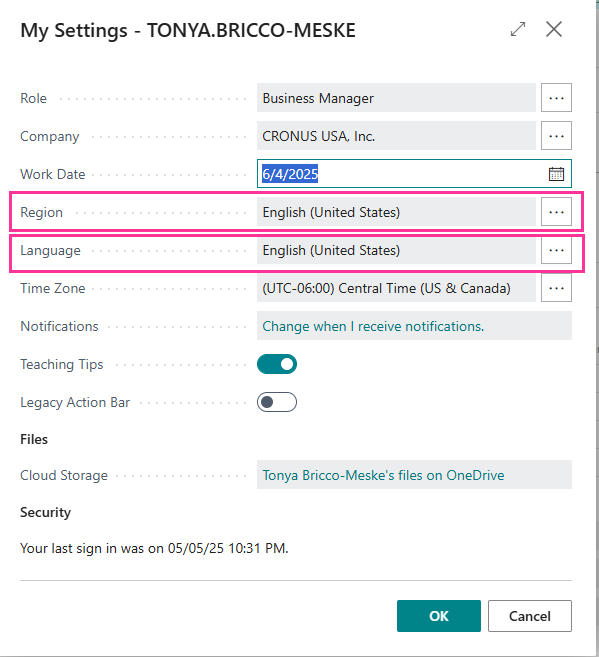
The Region setting determines how dates, times, numbers, and currencies are shown or formatted. It also determines what character is used as the decimal separator when using a numeric keyboard to enter data.
Users can change the language and format region on a case-by-case basis when previewing, printing, or sending a report. On the request page, select Advanced, then set the Language and Format Region.
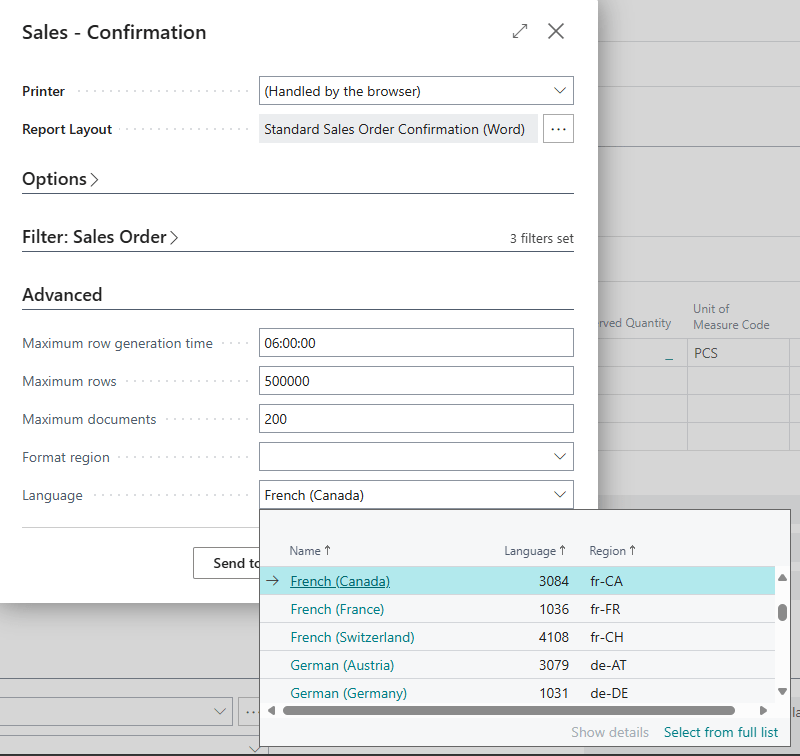
When it comes to displaying information on reports, specifically what we refer to labels or captions, there are a few things to note.
Labels
We have this great feature in report development where we can add Labels and use them in our report layouts. I actually blogged about it here. The “gotcha” is these labels are translated into the User’s Language BEFORE the report data is generated.
So if we want to have the captions of the report translated, we need to add the captions as a part of our dataset.
- Add a global variable for a label
InvNoLbl: Label 'Order No.'; - Add this as a column within the dataset
column(DocumentNo_Lbl; InvNoLbl){}
This label will then be picked up in .XLF files for translations.
Labels that are a part of the Labels section of the report object, or if you set the IncludeCaption = true property on the columns, these are sent out as parameters, and are only translated by the User’s Language settings. If you are developing multilingual reports, I would advise against creating captions this way. Instead, you should leverage the Language setting of the report dataset.
CurrReport.Language
You may have noticed when developing reports there is some code that gets the reports language.
Typically you will see in the OnAfterGetRecord() trigger of the header record the following code:
CurrReport.Language := LanguageMgt.GetLanguageIdOrDefault("Language Code");
CurrReport.FormatRegion := LanguageMgt.GetFormatRegionOrDefault("Format Region");
The header record will actually have a field for the Language Code and FormatRegion, which contains the language code of the recpient of the document. You can set these values at the Customer/Vendor level, and they will flow through to new documents. When printing reports, the captions that are part of the dataset will be displayed/translated into the reports language. While this does increase the size of your report dataset, it does truly allow the report to be used by multiple languages.
Testing Multilingual Reporting in Business Central
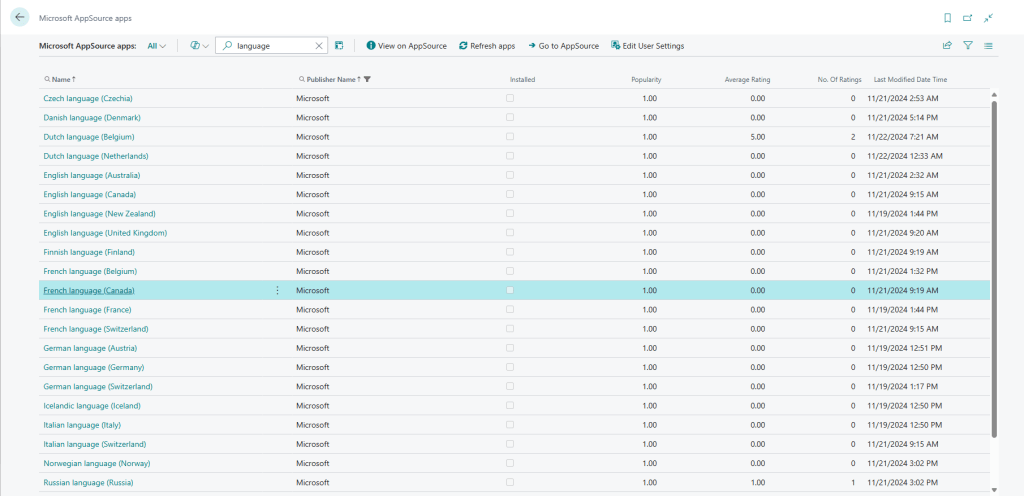
- If you want to test this out, make sure you have the language localization installed. For example, I installed the French language (Canada) extension from AppSource.
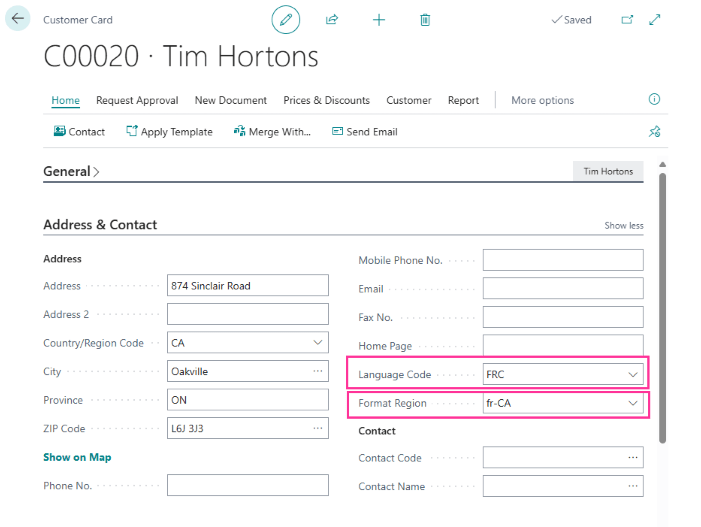
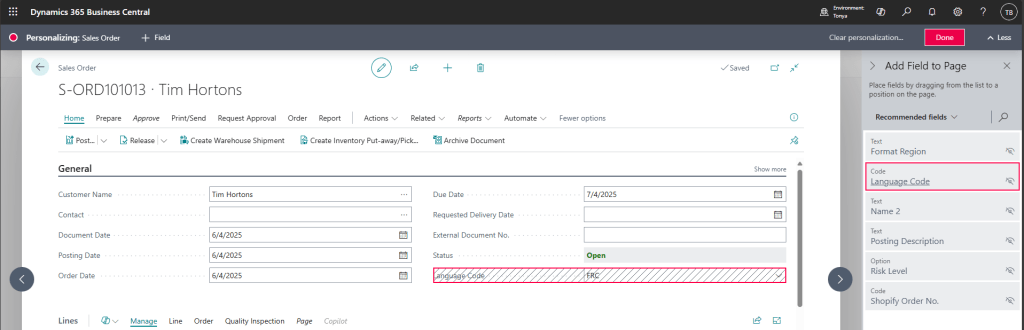
- Create a new customer in your Cronus environment. I created Tim Hortons, which is located in Canada. On the Customer Card, within the Address & Contact FastTab, when you click Show More, you can set the Language Code and Format Region.
- Create a new Sales Order for the Customer Tim Hortons.
- The Language Code and Format Region should pull from the Customer to the Sales Header.
- The Language Code and Format Region are part of the Sales Header General FastTab, but they are hidden by default. You are able to add them via personalization
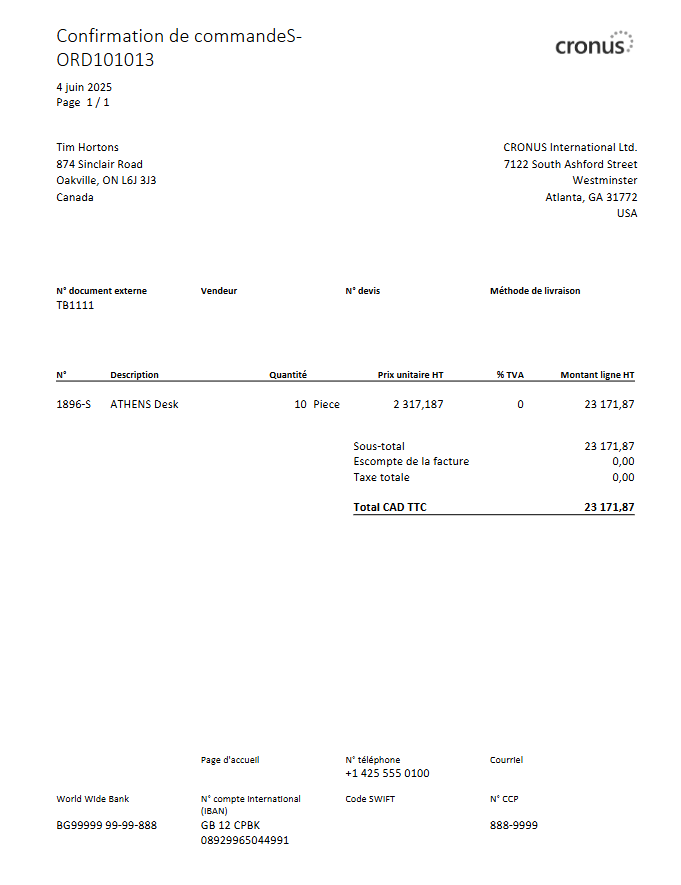
- Print the Standard Sales – Order Confirmation
- All of the captions should display in French- Canadian.
If you want to learn more about implementing multilingual reports for Business Central, check out this short walkthrough on Microsoft Learn.
 BC Development Notebook
A really cool picture at the beginning — it lifted my mood, and of course, thank you so much for the article!
LikeLike