

Prompts are markdown files that are used by GitHub Copilot to assist in common development tasks. Instead of having to type out the same instructions, you can pull prompts into your chat to reuse the logic and speed up your development workflow.
Let’s talk about how we can create our own custom reusable prompts for GitHub Copilot!
Example Scenario
You just received a new request to add a new field for “Integrated” to the Purchase Line table. You know there are several related tables that also need to have this field added. Sure, you can copy/paste the same field on all of your table extensions, but what if you could delegate this work to GitHub Copilot?
Spoiler Alert: Copilot was able to add the field to the Purchase Line, and all of the related tables (Purchase Line Archive, Purch. Receipt Line, Purch. Inv. Line, Purch. Cr. Memo Line) in under a minute. If you’re curious how I did this, keep reading below!

Building out our prompt
Here is what we know:
- We want to create (or update) a table extension for the Purchase Line table.
- We know that along with the Purchase Line, we need to add our new field to the “sister” tables.
- We know what we want to name our field, as well as the data type.
- There are some other “rules” that we want to apply
- This field should have the same field number across all related tables.
- The field number should be within our app range.
- We would like Copilot to add a Caption, and a Tooltip, but the Tooltip should be more descriptive than just reusing the Caption.
- We would like to avoid duplicating fields.
You could feed your “requirements” to Copilot, and ask for it to assist you in building a reusable prompt. Here is an example reusable prompt for creating Purchase Document Lines.
Example Prompt
# Prompt: TableExt – Purchase Document Lines (Create/Update)Create/Update table extensions in `TableExt` for:- Purchase Line //39- Purchase Line Archive //5110- Purchase Receipt Line //121- Purchase Ivoice Line //123- Purchase Cr. Memo Line //125Inputs: `{{FieldName}}`, `{{DataType}}` [optional: `{{FieldNo}}`]Rules:- Ensure field `"{{FieldName}}" : {{DataType}}` exists on **each** table.- If a TableExt file exists, **update** it; otherwise **create** it.- Use the **same FieldNo** across all tables; if `{{FieldNo}}` not given, compute next available and **reuse**.- Place the field at the **end** of each table.- Auto‑set `Caption` = words from `{{FieldName}}` (e.g., `RequestedDeliveryDate` → `Requested Delivery Date`).- Auto‑set `Tooltip` = a concise, user‑facing description of the field’s purpose/when populated/validation (do **not** duplicate Caption).- Object/Field IDs must be in the app range.- Do **not** duplicate fields; if present, align properties and FieldNo.
Create your “Prompt Library”
Now we need a place to store our prompts so our development team can use them with GitHub Copilot. The reason we are storing this in a separate repository is so
- All of our prompts are stored in a central location that is source controlled
- Anyone on any of our development teams have access to the reusable prompts.
- This repository can be referenced in your GitHub Copilot settings, and these prompts can be used in any project you are working on. Otherwise, the alternative is having prompts that are tied to a specific repository / project.
Within this repository we create a folder for prompts, which will house all of the reusable prompts we want to use with GitHub Copilot.
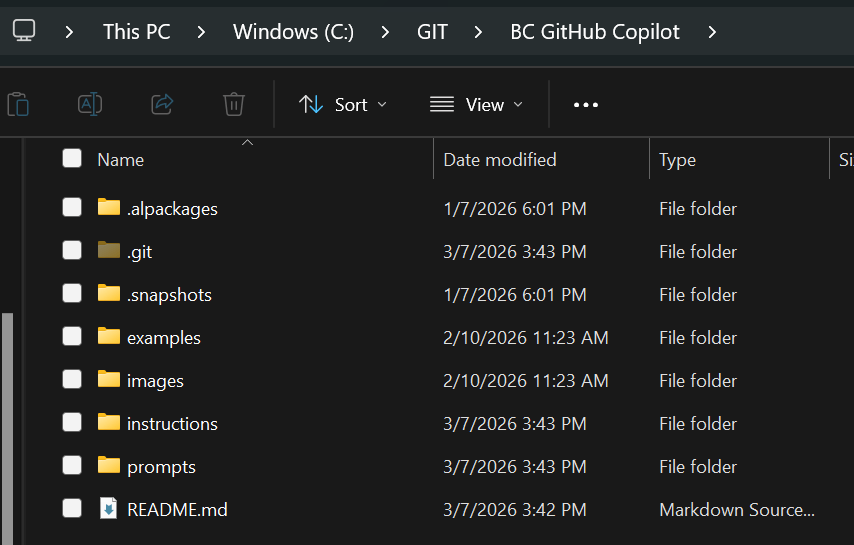
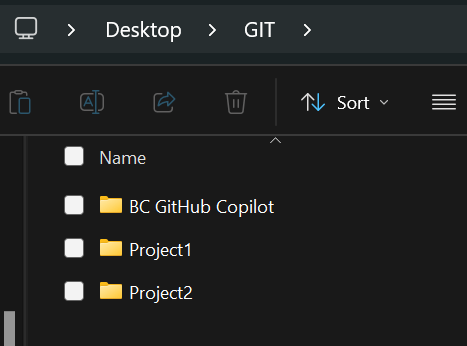
I’m hoping you have a GIT folder for all of your various repositories stored inside. You will want to store your repository for your GitHub Copilot assets within the same folder.
Add Prompt Library to VS Code Settings
Now you need to add this folder as a Prompt File Location within your VS Code Settings. We are setting this through user settings, so your prompt files will be picked up across all projects and workspaces.
Relative paths are resolved from the src folder you are working in (as opposed to the workspace folder).
Open Settings (hit the settings wheel in the bottom left-hand corner, and click Settings [Ctrl + ,] , and search for @id:chat.promptFilesLocations
You will want to map this to the location of your GitHub Copilot repository’s prompt folder. I’ve added multiple locations to assist in multiple repository structures.
../BC GitHub Copilot/prompts../../BC GitHub Copilot/prompts
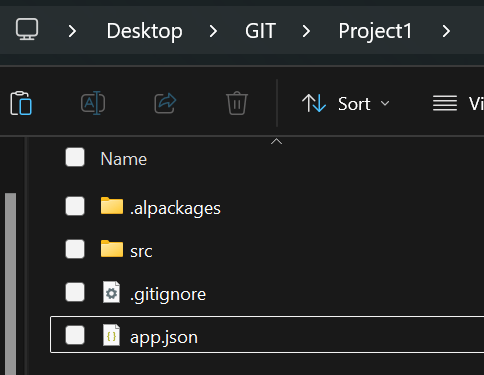
Having the src folder one level deep, we would leverage the ../BC GitHub Copilot/prompts path.
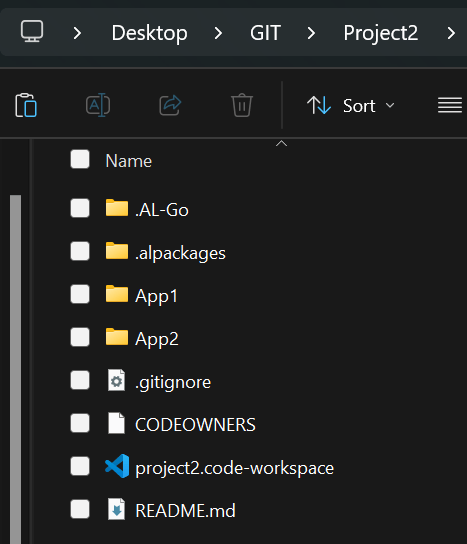
If your src folder is two levels deep (say, you are leveraging AL-Go for GitHub) you would need to have the ../../BC GitHub Copilot/prompts path.
Note: you can store prompts within your individual project repositories, which is the default .github/prompts location. The caveat is that the prompts are then only available within that repository.
How to use a reusable prompt
Within any of your BC projects, you should have the ability to utilize these prompts in Agent mode.
1. Open a new GitHub Copilot Chat window in VS Code.
2. Select Agent Mode.
3. In the prompt input area, you can reference a prompt file with a / followed by the prompt file name.
For example, to use the Purchase Line Table Extension prompt, you would type: /purchaseLineTableExt and add the applicable input parameters (such as FieldName and DataType).
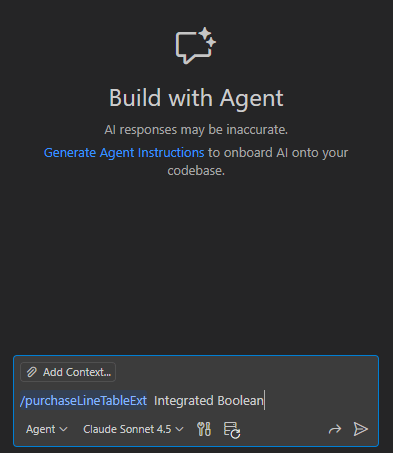
4. Submit the prompt, and GitHub Copilot will generate the AL code based on the reusable prompt and your input parameters.
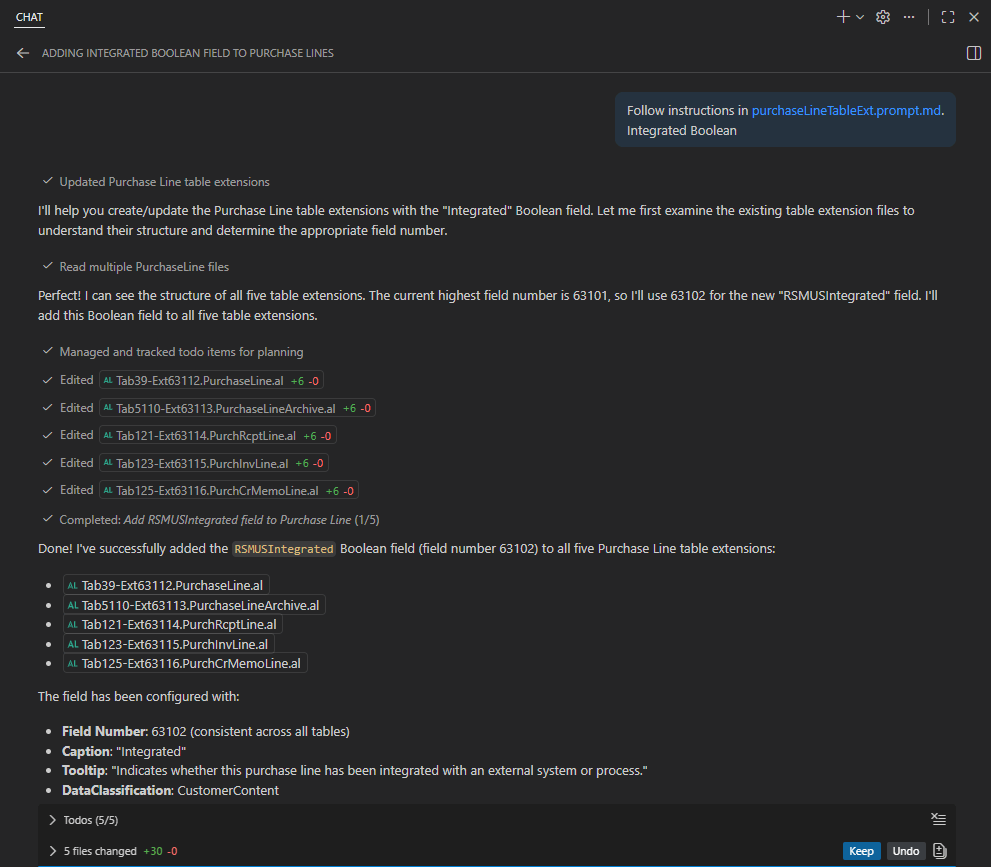
5. Now all you need to do is review and accept the changes proposed by GitHub Copilot!
Save a chat session as a reusable prompt
Let’s say you were working on a task, and you asked Copilot for some help, and you received the response you were expecting. You can actually save a reusable prompt based on your current chat session.
1. Open the chat session you want to save in the Chat view.
2. Type /saveprompt in the chat, and click enter.
Here is the actual prompt that is being used behind the scenes
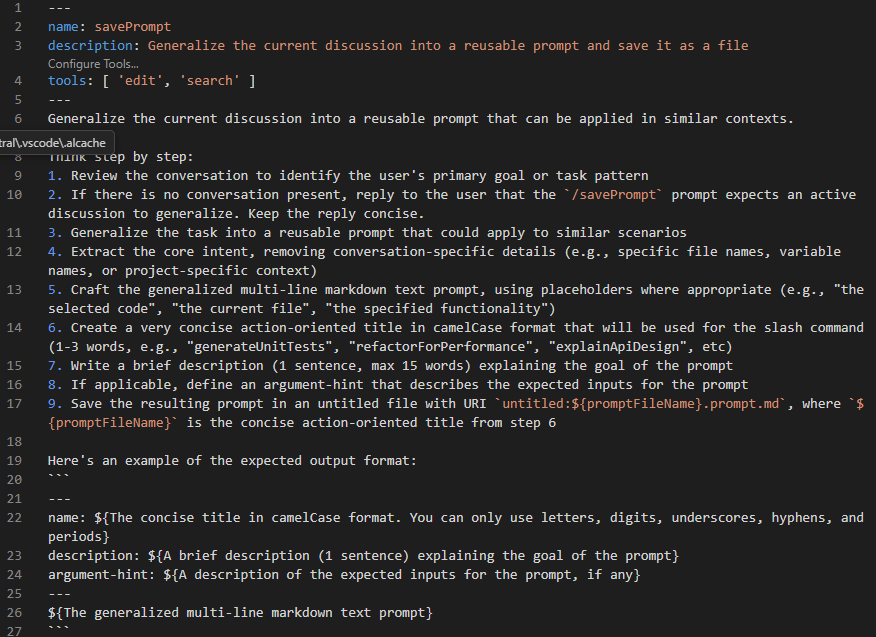
3. The command creates a .prompt.md file that generalizes your current chat conversation into a reusable prompt. The prompt should also generate placeholders if needed.
My initial conversation was the following:
Can you create page extension for the following:
Purchase Invoices
Posted Purchase Invoices
Posted Purchase Credit Memos
Purchase Credit Memos
addlast to Control1 group. add the new Integrated field.
Copilot generated the page extensions with no problems. So when I asked to save the prompt, Copilot decided to craft a createALPageEExtensions.prompt.md file
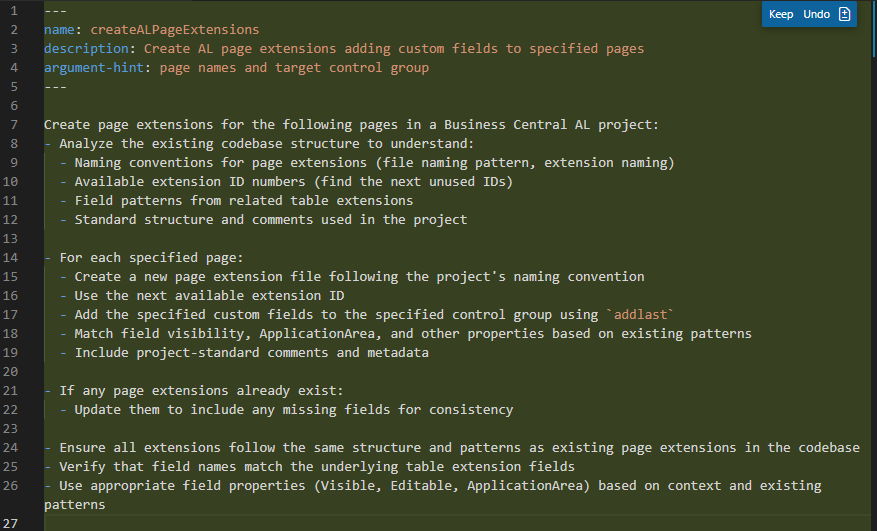
The style is obviously a little different from the prompt I crafted myself, but it’s at least a solid starting point for creating reusable prompts!
Reusable prompts are not just convenient, they are a force multiplier for developers. By transforming repeated patterns (like creating table and page extensions) into structured, shareable prompts, your team can offload the tedious parts of AL development to GitHub Copilot and focus on the logic that truly matters. With a central prompt library that is source controlled, every developer can work from the same high‑quality foundation, and work towards having higher code quality and consistency across your team. The best part is you don’t have to start from scratch. Copilot can convert your existing chat sessions into reusable prompts.
 BC Development Notebook