Our first approach to reusable GitHub Copilot workflows was a library of reusable prompt files. You can read about my reusable prompt strategy in GitHub Copilot Playbook: Reusable Prompts. Each prompt represented a specific Business Central development task, such as extending Sales Lines or adding fields to a page. This worked well if the correct prompt was selected. The challenge was knowing which prompt to use (or if one even existed), understanding naming conventions and parameters, and choosing the right one for your implementation.
As the library grew to more than 50 custom prompts, the challenge was ensuring developers had the right prompt at their fingertips. Developers needed a way to find the right workflow without memorizing filenames, naming conventions, or prompt parameters. That raised a new question: how could we keep prompts specialized while making them easier to discover?
Have you hit the midweek slump, and realized you have been putting off debugging that one weird issue all week? If you are on Business Central version 28 (or later), you can now let Copilot do some of the heavy lifting for you.
Have you experienced the newest bottleneck in your development process: Not being able to type your prompt fast enough.
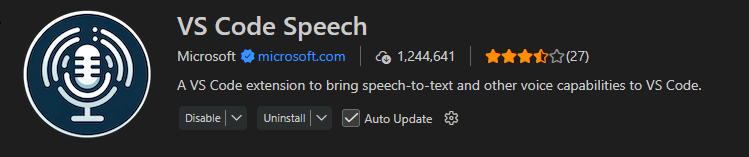
There is an extension within VS Code – “VS Code Speech” that allows you to talk to the Chat.
Setup
Once installed, you need to enable “Hey Code” to keep your fingers off the keyboard.
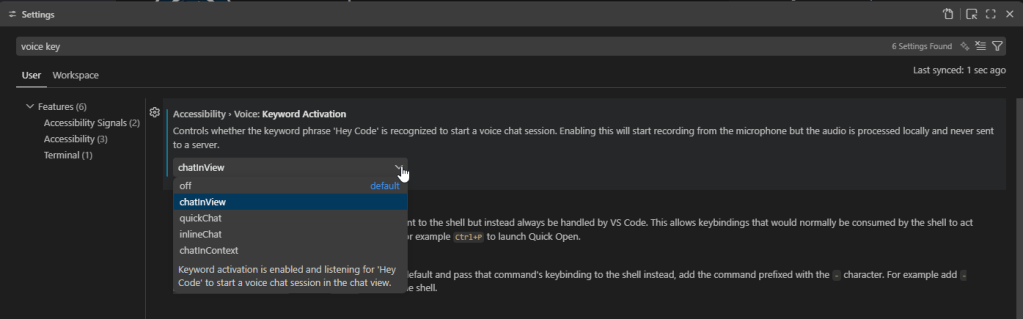
Open VS Code Settings (Ctrl + ,) and search for “voice keyword”.
You will want to set your Keyword activation, and there are couple different options.
off: default value, your microphone will not be activated
chatInView: listens for ‘Hey Code’ when you are in the Chat view
quickChat: This is a lightweight, global chat UI window that you can open with Ctrl + Shift + P > Open Quick Chat
inlineChat: This opens chat directly in your editor at your cursor / selection with Ctrl + I
chatInContext: listens for ‘Hey Code’ wherever you are in VS Code.
Note: the description states that VS Code will record from your microphone, but the audio is processed locally and is never sent to a sever.
Once you say ‘Hey Code’ you can start talking, and GitHub Copilot Chat is listening.
Extension Features
End Dictation
To end dictation you have a couple of options.
Click the microphone button
Press Escape
Press Enter – which will also submit your chat request
You can also edit the text being generated as the microphone is listening, in case it didn’t understand you correctly.
Read Aloud
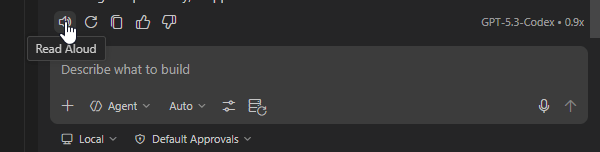
With “VS Code to Speech” enabled, you can also have the chat responses read to you. Once GitHub Copilot is done responding, you can click the speaker icon, and it will read what it responded with.
Dictate to Editor
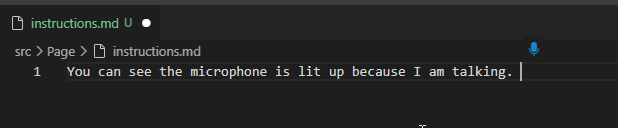
You can also dictate directly in the editor. Think writing your markdown instructions.
Ctrl + Alt + V will open your microphone within your editor, and you are ready to talk!
Thank you to Michael Megel for sharing this with the community on this blog post.
Prompts are markdown files that are used by GitHub Copilot to assist in common development tasks. Instead of having to type out the same instructions, you can pull prompts into your chat to reuse the logic and speed up your development workflow.
Let’s talk about how we can create our own custom reusable prompts for GitHub Copilot!