
Have you experienced the newest bottleneck in your development process: Not being able to type your prompt fast enough.
There is an extension within VS Code – “VS Code Speech” that allows you to talk to the Chat.
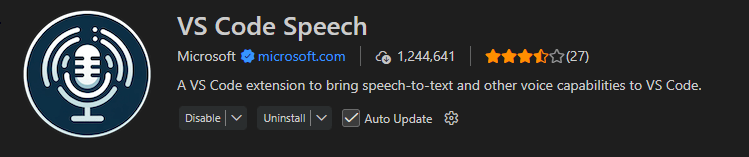
Setup
Once installed, you need to enable “Hey Code” to keep your fingers off the keyboard.
Open VS Code Settings (Ctrl + ,) and search for “voice keyword”.
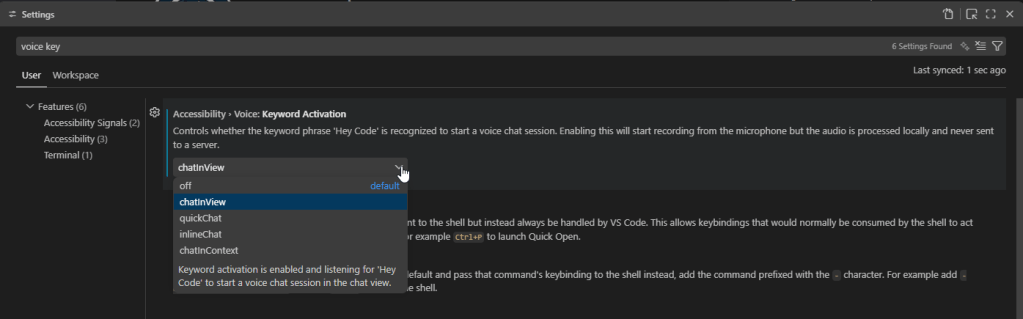
You will want to set your Keyword activation, and there are couple different options.
- off: default value, your microphone will not be activated
- chatInView: listens for ‘Hey Code’ when you are in the Chat view
- quickChat: This is a lightweight, global chat UI window that you can open with
Ctrl + Shift + P > Open Quick Chat - inlineChat: This opens chat directly in your editor at your cursor / selection with Ctrl + I
- chatInContext: listens for ‘Hey Code’ wherever you are in VS Code.
Note: the description states that VS Code will record from your microphone, but the audio is processed locally and is never sent to a sever.
Once you say ‘Hey Code’ you can start talking, and GitHub Copilot Chat is listening.
Extension Features
End Dictation
To end dictation you have a couple of options.
- Click the microphone button
- Press Escape
- Press Enter – which will also submit your chat request
You can also edit the text being generated as the microphone is listening, in case it didn’t understand you correctly.
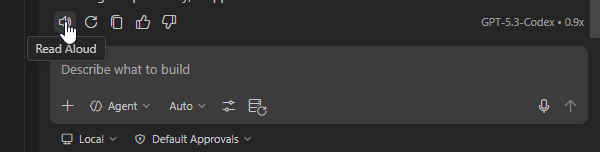
Read Aloud
With “VS Code to Speech” enabled, you can also have the chat responses read to you. Once GitHub Copilot is done responding, you can click the speaker icon, and it will read what it responded with.
Dictate to Editor
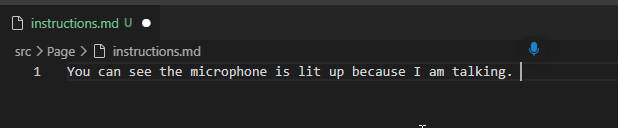
You can also dictate directly in the editor. Think writing your markdown instructions.
Ctrl + Alt + V will open your microphone within your editor, and you are ready to talk!
Thank you to Michael Megel for sharing this with the community on this blog post.
VS Code Speech – Extension Details
 BC Development Notebook