

As a Business Central Developer, we know that the quickest and easiest way to check if a field has a value is to call the TestField method on a Record. When used, the system checks to see if the field is not zero or a blank string. If there is not a value, we are used to getting an error.
TestFields have gotten some love at the platform level to help users quickly solve data problems and continue in their processes. This blog post will walk you through the changes in system behavior, and how to tweak your code to maximize user efficiency.
As part of our clients business process, they email out order confirmations. We want to ensure that we have the Customer’s Email Address before we Post the Sales Order. So we added an action to the Sales Order List Page that will “test” to see if the (Sell-to) Customer has an Email populated.
pageextension 70106 "TBM_SalesOrderList" extends "Sales Order List"{ actions { addlast(Processing) { action(TBM_RSMUSverifyCustomerEmail) { ApplicationArea = All; Caption = 'Verify Customer Email'; Image = ExternalDocument; ToolTip = 'Checks to see if the Sell-to Customer''s email is populated.'; trigger OnAction() var Customer: Record Customer; begin if Customer.Get(Rec."Sell-to Customer No.") then Customer.TestField("E-Mail"); end; } } addlast(Category_Process) { actionref(TBM_RSMUSverifyCustomerEmail_Promoted; TBM_RSMUSverifyCustomerEmail) { } } }}
Automatic Navigation
There has been a platform improvement where now a TestField will provide an option for automatic navigation to the record’s Card Page.
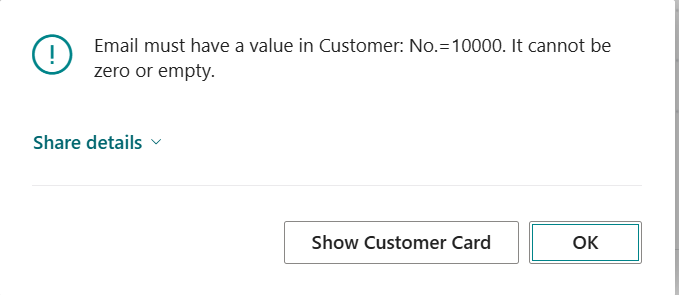
When we Click the “Verify Customer Email” from the Sales Order List page, we see the normal message that Email must have a value in Customer: No.=10000. It cannot be zero or empty. The new improvement is that now we have an actionable error that will take us to the Customer Card!!
Automatic Navigation Limitations
- When navigating to the card page, the user will not be directed to the specific field that needs a value.
- There will not be a visible cue (like highlighting) for the field that needs attention
- As a developer, we have no control over
- The button – it will always display “Show [Record Name]”
- The page – it will always navigate to the card page defined for the table
- The error message – we still have the standard field-is-empty error.
If you would like to have more control over the user experience, we now have the ability to leverage ErrorInfo with TestFields.
TestField with ErrorInfo
You can overload the TestField method and pass along an ErrorInfo to provide more refined information to a user.
TestField(Field, ErrorInfo)
Using an ErrorInfo you can
- Highlight the specific field that needs attention
- Provide a custom caption on the button for navigation
- Allow the user to navigate to a page other than the default card page
- Add a more detailed error message to help the user understand the fix
So instead of having a user click the action to verify the Customer Email, let’s add code to check this during the Sales Order release process.
We are going to load up our ErrorInfo with all the information it needs to help guide the user to quickly solve the problem. When we create the ErrorInfo, we are passing the following information:
- Message
The following parameters are [Optional] but enhance the user experience. These are the parameters I am using.
- Whether or not it’s collectible (false)
- Record that you will be opening to have them update
- Field No. related to the error
- Page No. – for the page that you should display to the user as part of your actionable error
- Control Name that you would like to lead the user to.
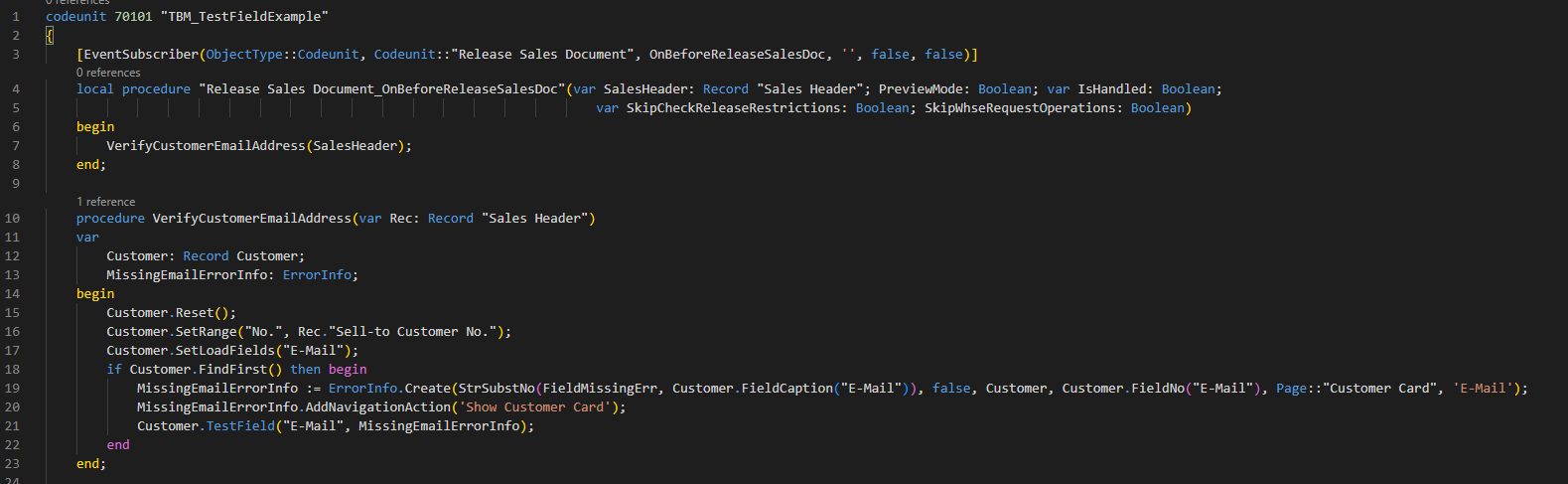
So now our actionable error will take us to the Customer Card, AND focus the cursor on the Email field for the user to immediately populate.
TestField + ErrorInfo…for a List Page?
So as I was writing this blog post, I was trying to think of fields I have trouble navigating to. For some reason, it’s remembering on a list page not only which record am I on, but which field do I need to populate. So I set out to test this new functionality.
I started by adding a new custom field to User Setup for “Favorite Cat Breed” because…BC Cat Lady here 😻. So when we attempt to release a Sales Order, it’s going to check if the current user has a favorite cat breed.
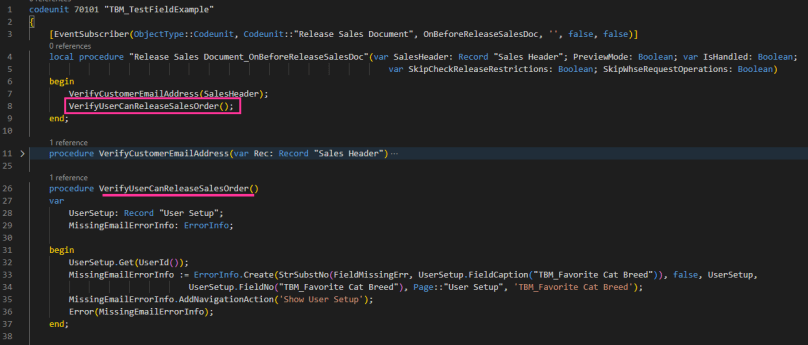
You can see the code is pretty similar to what we added previously. The only difference is now we are attempting to open a list page, filtered to a specific record, and focus on the Favorite Cat Breed.
The actionable error does open the User Setup list, and it is filtered to my specific user, BUT it does not take you directly to the field. When reading the documentation on The actionable error does open the User Setup list, and it is filtered to my specific user, BUT it does not take you directly to the field. I have an open question to Microsoft if this functionality should only work with card pages, or list pages as well.
Resources
Record.TestField – Microsoft Learn
ErrorInfo.Create – Microsoft Learn
All of the code examples related to this blog post are on GitHub

